Publication of freight offer to a route
 Updated 1 month ago
by
Katarzyna
Updated 1 month ago
by
Katarzyna
- Create freight for a route
- Create freight covered by future cooperation terms
- Publish freight to a route covered by flexible cooperation
- Publish by order from the list of carriers
- Pass on to another recipient (sequential publication)
- How sequential publication works
- Gradually add more recipients (expanding publication)
- How expanding publication works
Who can use this feature? This feature is available to all CargoON users who have the CargoON Freight Platform product. |
From this article you will learn:
- how to publish a freight offer to a route,
- how to publish freight covered by future cooperation terms,
- where to edit the list of active carriers on a route,
- what are the two options for automatic publication according to the order on the carrier list.
Once you have route offers (contracts) accepted by the carrier, you can start publishing freight to the route.
You can do this in two ways:
- by creating a new freight offer and selecting the route publication mode
- by entering the details of a selected route and publishing a freight offer to it.
Create freight for a route
- Open the Routes with carriers module and find the route you are interested in in the table. Click on it to open the view with the contract details.
- Click the cargo icon and select the Send freight option. This will open the freight publication form.

- Fill in the missing fields. Also add any requirements and vehicle details that may be of interest to you.
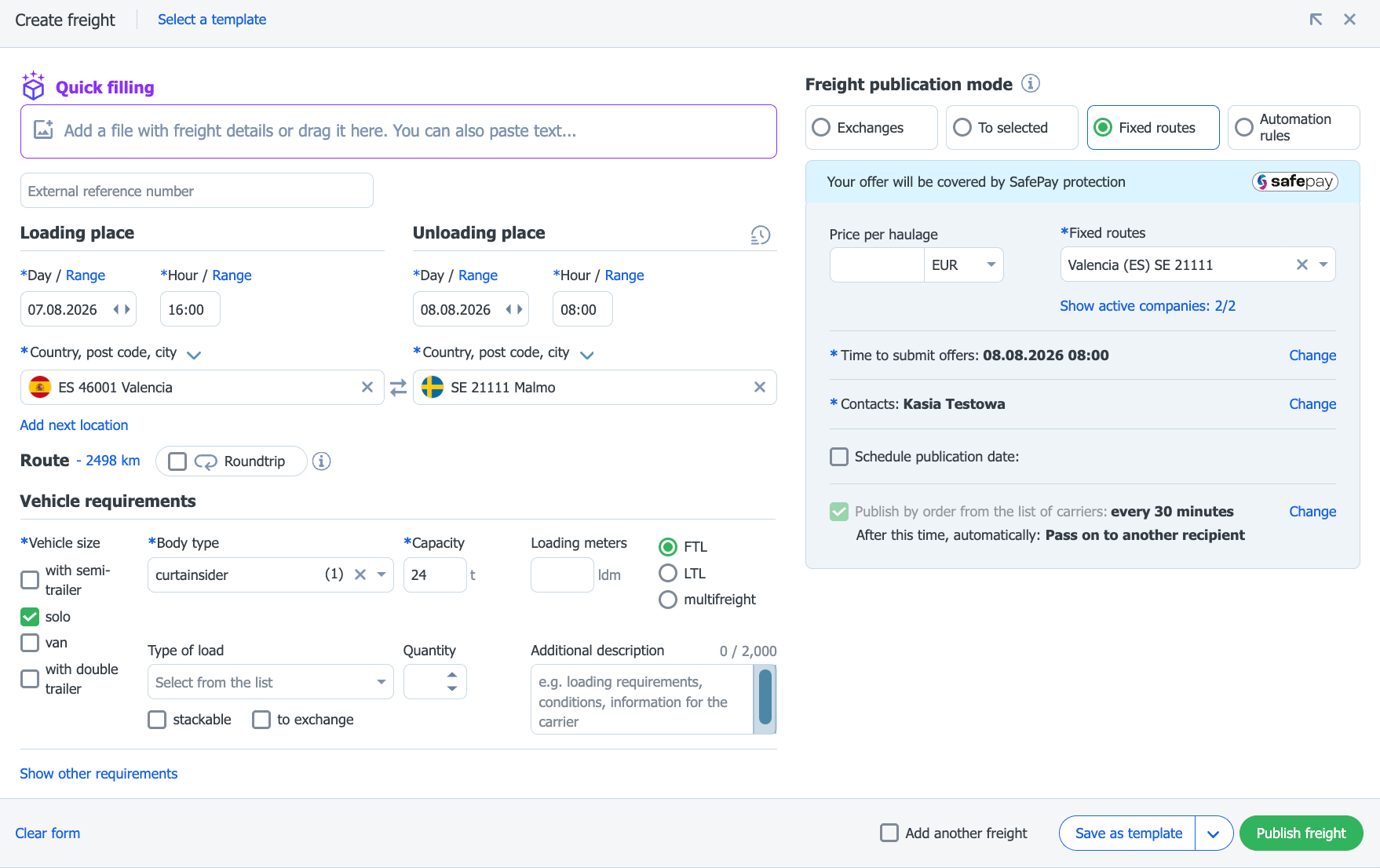
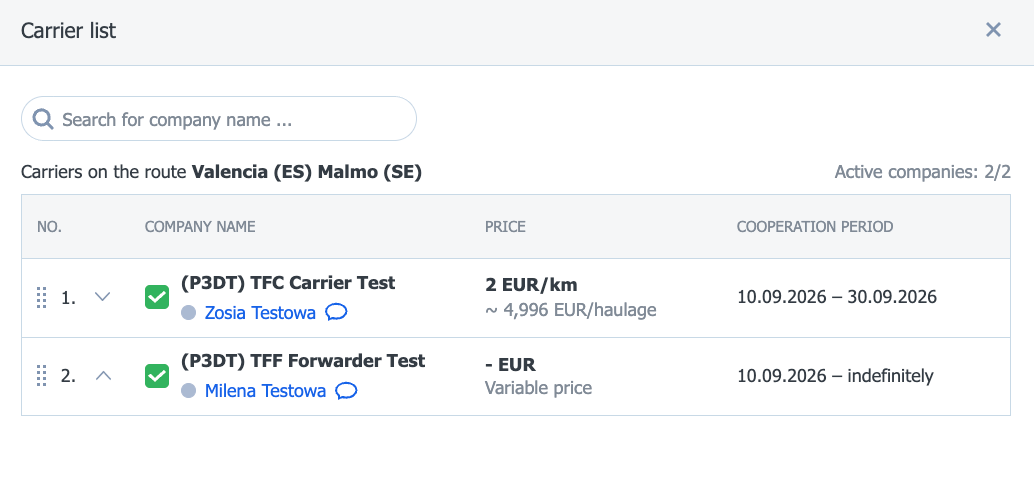
- On the right side of the form, you can preview the active companies that your publication will reach. Click on Show active companies, then edit their activity or order on the list.
- In the freight addition form you can also:
- edit the time for submitting offers,
- change the contact person,
- schedule the publication for a later date,
- choose publication in order of time (more on this below),
- save the completed form as a template.
- After filling in the form, click the Publish freight button to publish the offer to the route.
- You will find the offer in the Freight module, in the Added tab.

Create freight covered by future cooperation terms
When sending a freight offer, you can link it to the current cooperation terms or to an accepted future contract that includes new terms (e.g. surcharges).
- Open the Routes with carriers module and find the route you are interested in in the table. Click on it to open the view with the contract details.
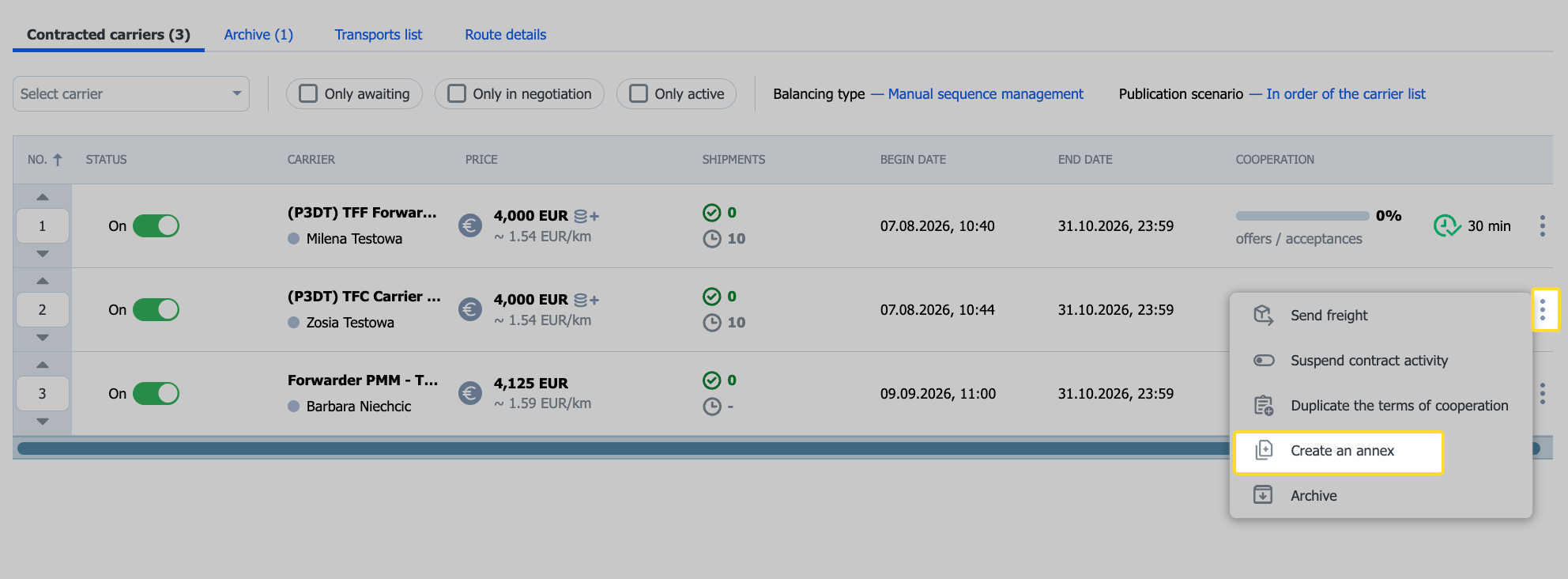
The current terms, along with annexes, are available in a drop-down list. The terms are grouped by start date (from nearest to furthest), and the collapsed list view displays those in effect on a given day.
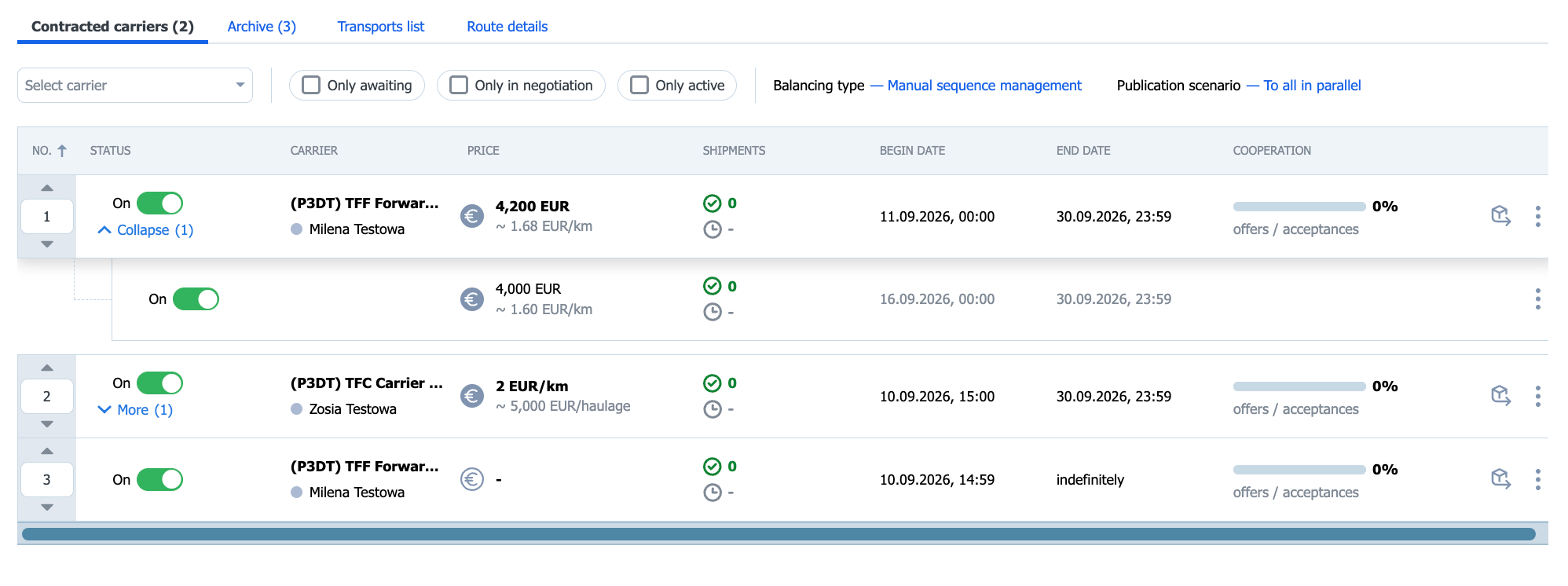
- Click the cargo icon or the 3 dots and select the Send freight option.
- Complete the freight addition form and click Publish freight.
You will find the freight offer linked to the cooperation terms with a future price in the Freight module, in the Added tab.
Publish freight to a route covered by flexible cooperation
- Go to the Routes with carriers module and select the one to which you want to publish a freight offer.
- Click the cargo icon and select Show freight. This will open the freight publication form.
- Complete the form with additional information. You can enter a price or publish the offer without a price.
After selecting Show active companies, in the Carrier list window you can disable a company or change the order.
- After entering all the data, click Publish freight.
- The freight offer is located in the Freight module, in the Added tab.
- If carriers submit offers to you, you will receive notifications. You will find the offers in the freight drawer, in the Negotiations tab.
- Choose the carrier with the rate that suits you best, or start negotiations with them.
- If the carrier presents their rate, you can also negotiate it by entering your amount and clicking Send.
- You can also reject the offer. To be able to negotiate further with this carrier, you must wait until the carrier withdraws the offer or submits a new one.
- Selecting End negotiations ends them for all employees.
After acceptance, the offer will move to the Accepted tab in the Freight module.
If none of the carriers respond to your offer, it will go to the Archive tab.
Publish by order from the list of carriers
When publishing a freight offer, you can use two types of publication to the carriers from your list for a given contract / route. This option is especially useful if you want to give your favourite carriers on the list more time to respond to the offer.
- In the freight publication form for a route, tick the option: Publish by order from the list of carriers.

- Open the edit window (click on Change) to customize the settings.

- Specify the time after which the publication of the offer will go to the next carrier on the list.
- Choose one of the automatic publishing options.
Pass on to another recipient (sequential publication)
When publishing a new freight offer to a route, you can use the option to publish by order from the list of carriers, and then use the setting: Pass on to another recipient.
What does it mean? Your offer will be received by the first carrier on the list and it will be available for acceptance for the period of time that you specify. When that time expires, the offer will be presented to the next carrier on the list for the same amount of time. After that, the offer goes to the next carriers, sequentially, until it is accepted or the list of carriers is exhausted.
Carriers whose time to accept the offer has expired lose the opportunity to respond to the offer.
This mechanism works sequentially, hence the alternative name: Sequential publication.

How sequential publication works
To publish freight to the subsequent recipients:
- Select Publish by order from the list of carriers in the freight publication form, specify the duration of the publication by clicking on Change, then select the Pass on another recipient option in the edit window.
- Go to the Freights module and select your offer from the list. Click on it to view the details.
- In the Carriers' offers tab, you can see the progress of the publication. A carrier that has just received the publication will see the Awaiting reply status. The counter below informs you how much time they have left.

- If there is no response from the carrier, the offer is forwarded to the next one on the list after the time set by you expires. The status for the previous carrier changes to Completed.

Gradually add more recipients (expanding publication)
When publishing a new freight offer to a route, you can use the option to publish by order from the list of carriers and then use the Gradually add more recipients setting.
What does it mean? Your offer will be received by the first carrier on the list and it will be available for acceptance for the period of time that you specify. When that time expires, the offer will be presented to the next carrier in the list for the same amount of time. Later, the offer goes to the next carrier, but the previous carriers can still accept it. The list of recipients of the offer is gradually expanded.
Carriers whose time to accept the offer has expired still have a chance to accept the offer, but they will be competing with a larger group of carriers.
This mechanism is based on expanding the recipient group, hence the alternative name: Expanding publication.

How expanding publication works
To publish a freight to a gradually growing group of carriers:
- Select Publish by order from the list of carriers in the freight publication form, specify the duration of the publication by clicking on Change, then select the Gradually add more recipients option in the edit window.

- Go to the Freights module and select your offer from the list. Click on it to view the details.
- In the Carriers' offers tab, you can see the progress of the publication. A carrier that has just received the publication will see the Awaiting reply status. The counter below informs you how much time they have left.

- If there is no response from the carrier, the offer is forwarded to the next one on the list after the time set by you expires. The status for the next carrier will change to Awaiting reply, while the previous carrier will be given some additional time.

