Employee Roles and Permissions
 Updated 8 minutes ago
by
Katarzyna
Who can use this feature? The feature is available to all users of the Trans.eu Platform and CargoON. |
In this article, you will learn:
- how to change an employee's role and permissions,
- what the administrative roles are,
- what the operational roles are and what permissions they include,
- what a technical (free) account is,
We describe how to add an employee in the article Employee accounts – adding and managing.
Each employee has four elements in their account settings:
- Administrative role – determines whether the employee can manage the company and its employees.
- Operational role – determines which Platform features the employee uses, e.g. freights and orders, or only the Loads4DRIVER app.
- Permissions – refine the Full access role. They grant access to selected features or restrict it.
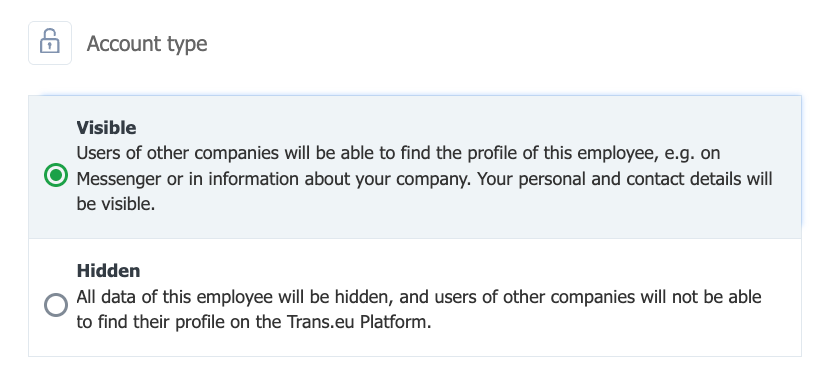
- Account type – determines whether other companies can see the employee's profile.
An employee has one administrative role and one operational role. They can have several permissions.
How to change an employee's role and permissions?
The employee's roles, permissions and account type are changed by the Administrator in the My company module, in the Employees tab, in the Manage employee window → Account settings. You can select the settings when adding an employee or change them later.
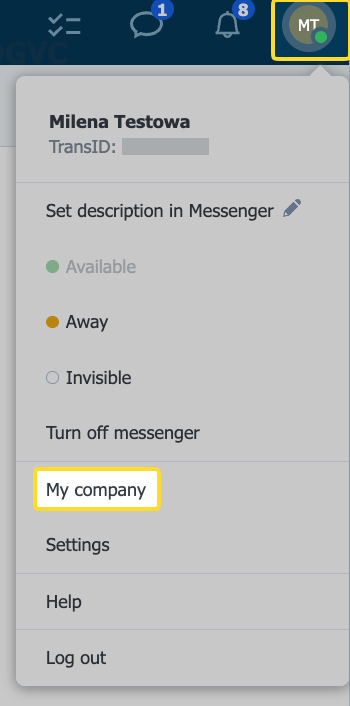
- Click the avatar in the top right corner and select My company.
- In the Employees tab, click the three-dot icon next to the selected employee and choose Manage employee.

- Go to the Account settings tab.
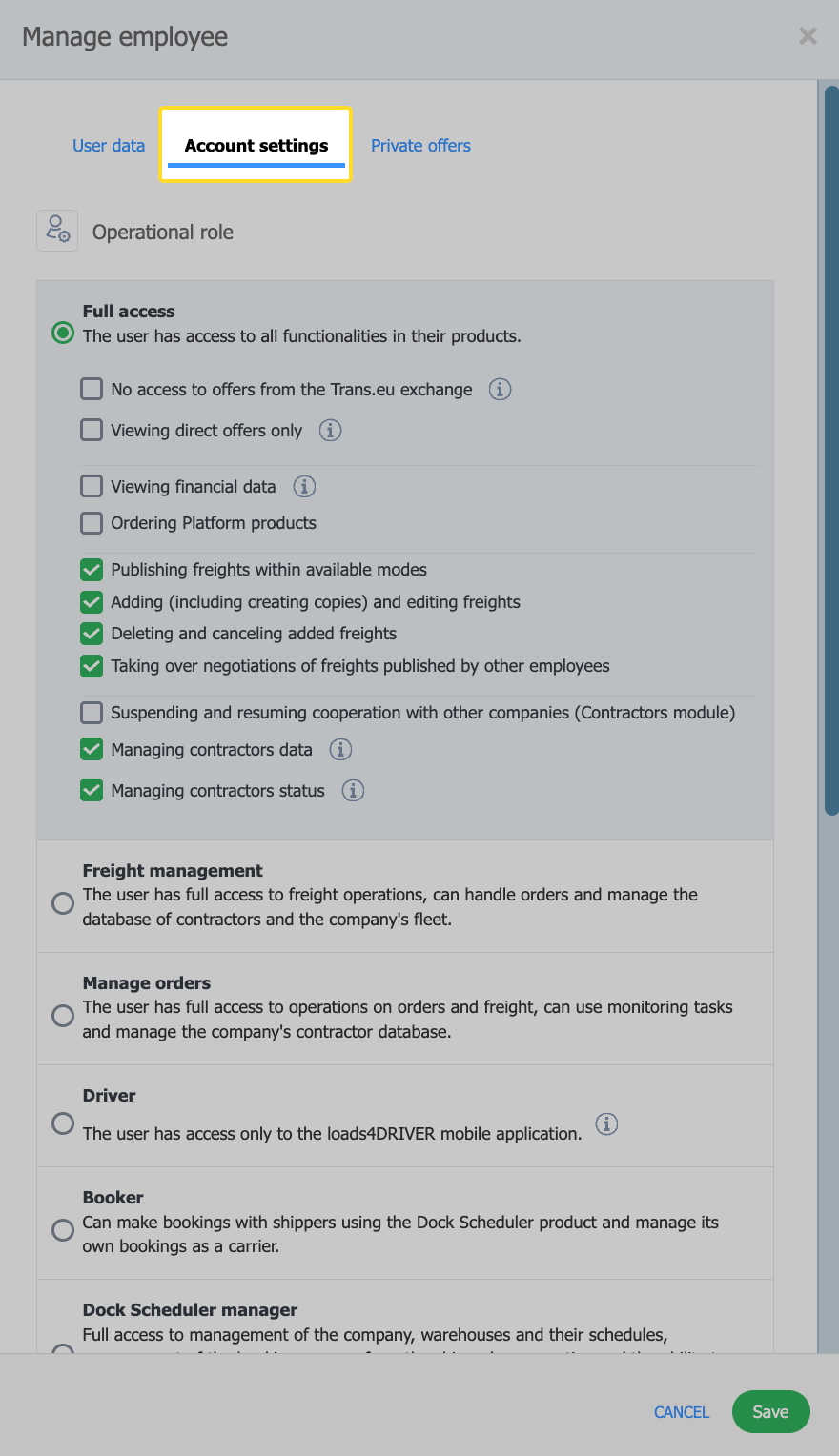
- Select the administrative role, operational role, permissions and account type.
- Click Save.
You can see each employee's current settings in the list in the Employees tab, in the Account type, Administrative role and Operational role columns.
Hover over the i icon next to a permission to see a short explanation of it.
What are the administrative roles?
The administrative role determines access to company data and employee management. It is set by the Administrator in the Manage employee window → Account settings, in the Administrative role section.
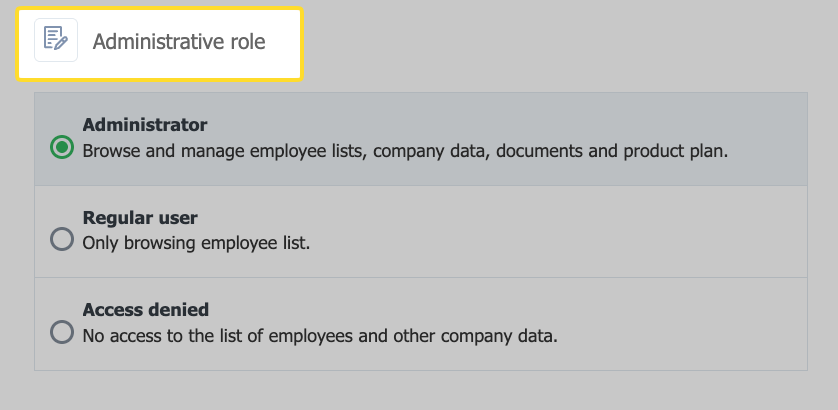
ROLE | SCOPE OF PERMISSIONS |
Administrator | Views and manages the employee list, company data, documents and the product plan. |
Regular user | Views the employee list. |
Access denied | Has no access to the employee list or other company data. |
How to change the company account administrator?
The Administrator role is granted and revoked by an Administrator in the My company module, in the Employees tab. A company can have several administrators. Click the three dots next to the employee, select Manage employee → Account settings, choose the appropriate option in the Administrative role section and click Save.
What are the operational roles and what permissions do they include?
The operational role determines which Platform features the employee uses. It is set by the Administrator in the Manage employee window → Account settings, in the Operational role section. An employee can have one role.
Once you select a role, a list of the permissions available in that role will appear below its description. Check the ones the employee should have.
Hover the mouse cursor over the i icon next to a permission to display a window with a short explanation.
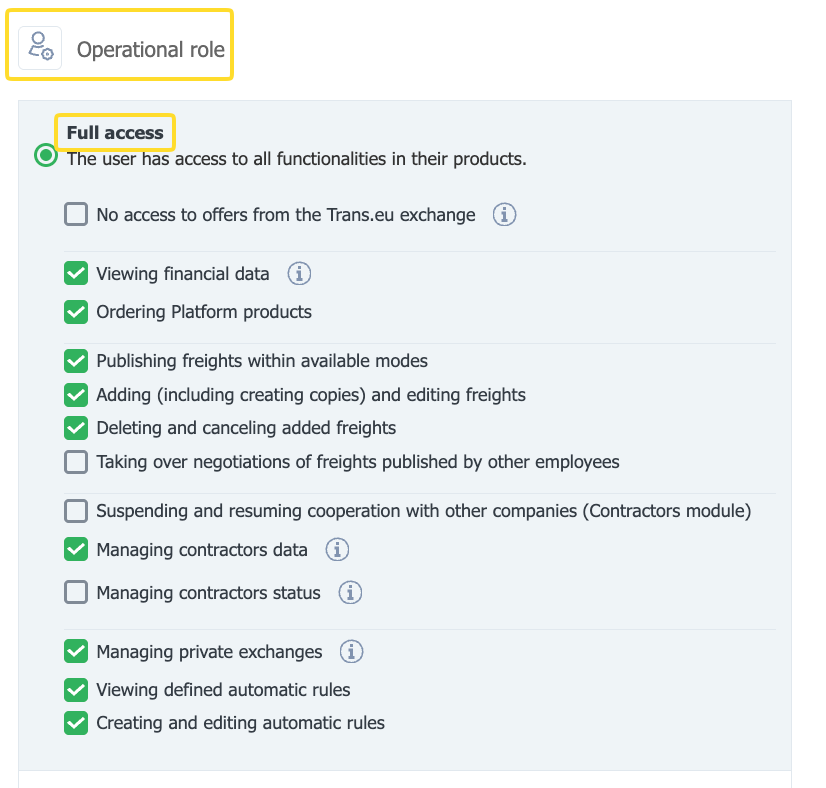
FULL ACCESS
The user has access to all features in the products the company owns.
Available permissions:
- No access to offers from the Trans.eu Exchange - the user has no access to offers from the Trans.eu Exchange but has access to other offers. This user's activity is not counted towards the fee for additional active seats charged for the company's public exchange.
- Access to direct offers only - the user has access to direct offers only (no access to exchange or group offers). This user's activity is not counted towards the seat fee.
- Viewing financial data - the user has access to invoices issued by Trans.eu, billing statements and fees for additional active seats, as well as details of the purchased subscription.
- Ordering Platform products - the user can order products available on the Trans.eu Platform.
- Publishing freights within the available modes - the user can publish freights.
- Adding (including copying) and editing freights - the user can add freights, create copies of them and edit them.
- Deleting and cancelling added freights - the user can delete and cancel added freights.
- Taking over negotiations of freights published by other employees - the user can take over negotiations of freights published by other users in their company.
- Suspending and resuming cooperation with other companies (Contractors module) - the user can suspend and resume cooperation with other companies in the Contractors module.
- Managing contractor data - the user can manage contractor data and supplement it with additional internal information.
- Managing contractor status - the user can suspend and resume cooperation with other companies, block cooperation and remove companies from the contractor list.
- Managing private exchanges - the user can manage members of their company's private exchange and send invitations to the private exchange.
- Viewing defined automatic rules - the user can view automatic rules.
- Creating and editing automatic rules - the user can create new automatic rules and edit existing ones.
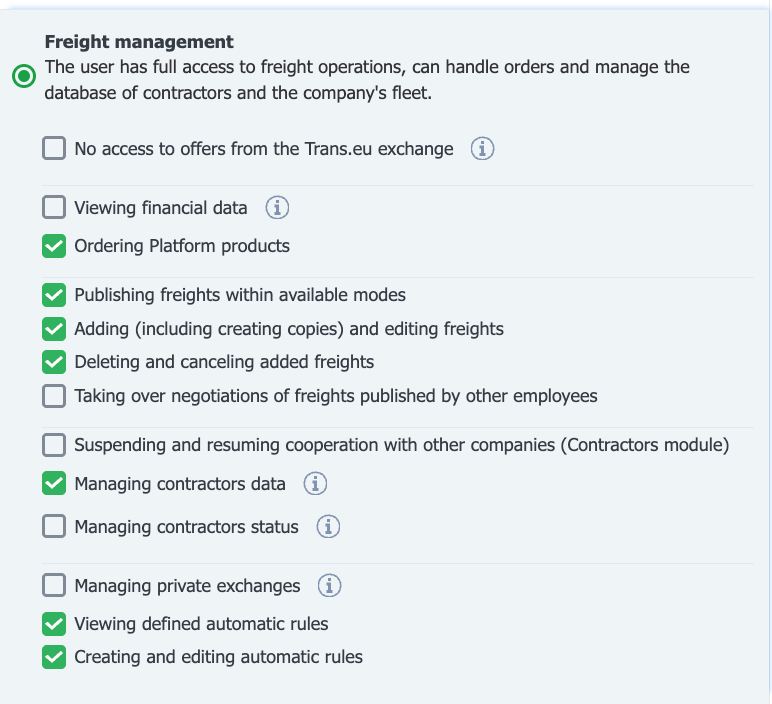
FREIGHT MANAGEMENT
The user has full access to freight operations, can handle orders and manage the company's contractor database and fleet.
Available permissions: the same as in the Full access role.
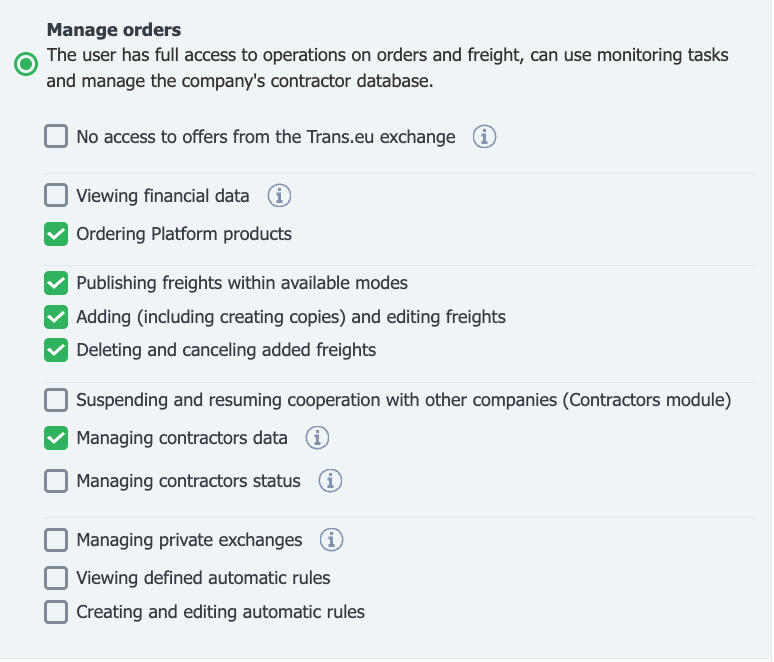
MANAGE ORDERS
The user has full access to order and freight operations, can use monitoring tasks and manage the company's contractor database.
Available permissions: the same as in the Full access role, except for the Taking over negotiations of freights published by other employees permission.
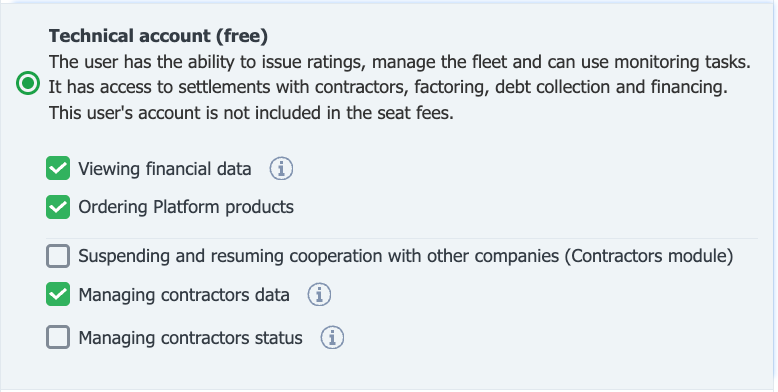
TECHNICAL ACCOUNT (FREE)
The user can issue ratings, manage the fleet and use monitoring tasks. They have access to settlements with contractors, factoring, debt collection and financing. They have no access to the Exchange, Freights, Orders or Messenger.
Available permissions: Viewing financial data, Ordering Platform products, Suspending and resuming cooperation with other companies (Contractors module), Managing contractor data, Managing contractor status, Viewing defined automatic rules, Creating and editing automatic rules.
DRIVER
The user has access only to the Loads4DRIVER mobile app. The role is available in the TFF and TFC product lines.
Available permissions: Viewing financial data, Ordering Platform products.
ROLES IN THE DOCK SCHEDULER PRODUCT
ROLE | SCOPE OF PERMISSIONS |
Dock Scheduler Manager | Full management of the company, warehouses and their schedules, management of the booking process from the shipper's perspective, and booking time slots as a carrier with other shippers. |
Warehouse manager | Creates and manages warehouse work schedules. Assigns time slots and manages bookings created by carriers. |
Storekeeper | Views loading schedules and confirms the start and end of operations. |
Security guard | Views the list of bookings, confirms that the data matches the booking, and marks arrival at and departure from the place of operation. |
Booker | Books time slots with shippers using Dock Scheduler and manages their bookings as a carrier. |
Read more in the articles Employee roles in the Schedules module and Employee roles in the Bookings module.
ACCESS DENIED
The user has no access to the Platform's operational features. No permissions can be selected in this role.
How to hide an employee's account from other companies?
The account type determines whether users from other companies can find the employee. You can set the account type in the Manage employee window, in the Account settings tab.
- Visible - users from other companies will be able to find this employee's profile, e.g. in Messenger or in your company information. Personal and contact details will be visible. This option is selected by default.
- Hidden - all of this employee's data will be hidden, and users from other companies will not be able to find their profile on the Trans.eu Platform.
The technical account is always hidden.