This feature is available to CargoON and Trans for Forwarders users who use the Fixed Routes module and have purchased the complementary product: Business Intelligence Reports.
Reports are visible to selected users designated by the company ordering access.
The Fixed Routes report is part of the fixed routes report group. The Fixed Routes report shows your company's activity in the Freights module, but only takes into account freights published via Fixed Routes. Data source: Data comes from the Freights module and the Fixed routes with carriers module. Data scope: The report includes freights that were published via Fixed routes. It also includes details of the Fixed routes that these publications relate to.
Based on the report data, you can:
check statistics of received offers – both from the carrier's and the fixed route's perspective,
see how effectively/often carriers accept offers,
check the acceptance level of a specific carrier on a specific route.
Navigation in the Fixed Routes report
You'll find the Fixed Routes report in the BI Reports module. Enter the module and select the Fixed Routes tab.
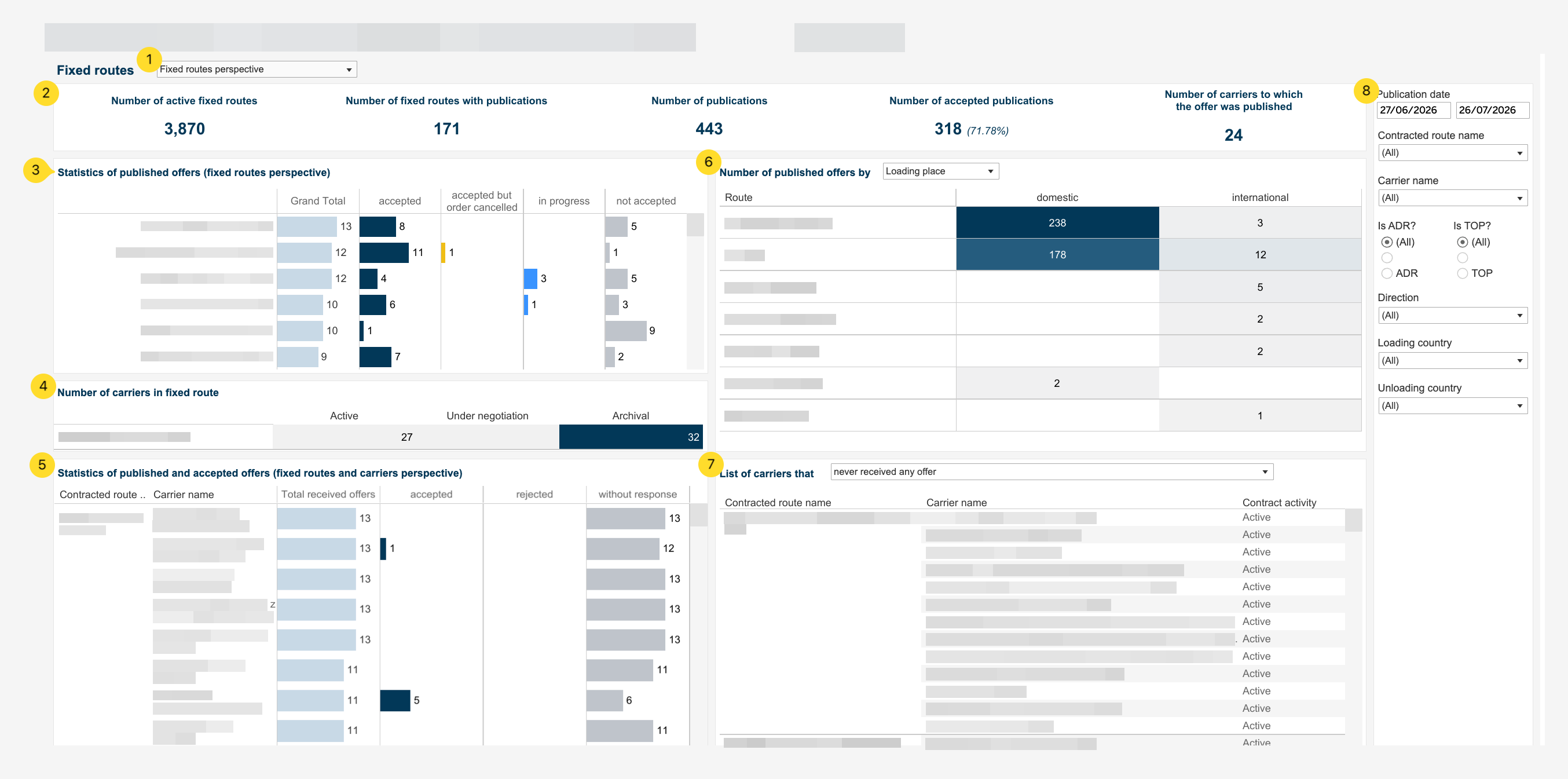
The report consists of 8 sections:
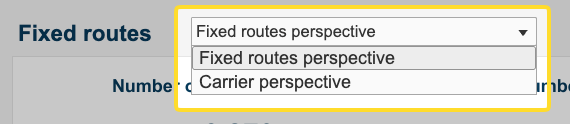
Data view - using the drop-down list, you can choose whether the data should be presented from the fixed route perspective or the carrier perspective.
Fixed routes overview indicators.
Statistics of published/received offers chart - depending on the data view setting.
Number of carriers in fixed routes/fixed routes in which carrier has active contract chart - depending on the data view setting.
Statistics of published and received offers chart.
Number of published offers by Loading place/Unloading place/Route chart.
List of fixed routes/carriers - depending on the data view setting.
Filters - a set of filters that works in both tabs of the report.
Setting the scope of analyzed data
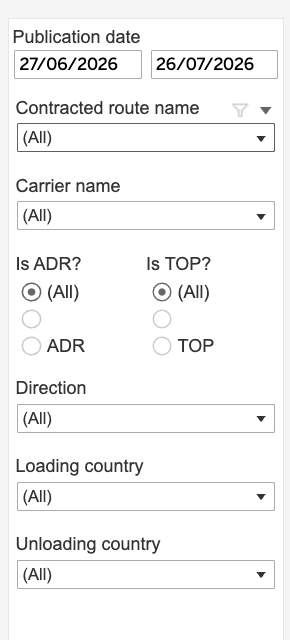
You can narrow down the scope of the data as needed using filters. You'll find them on the right side of the report.
In the filters you can select:
Date range (Publication date) - set the period the data should come from (by publication date).
Contracted route name – if you want to check a specific fixed route.
Carrier name – if you want to check the statistics of a specific carrier.
Is ADR/Is TOP – if you want to narrow down the routes to those with special requirements.
Direction – to separate domestic routes from international ones.
Loading/Unloading country – if you want to specify the location even further.
In addition to the filters, the dashboard also includes a Data view - a list where you choose whether the data should be shown from the fixed route or the carrier perspective. Unlike filters, the data view does not narrow down the scope of the data, it only changes the way it is presented.
Fixed routes overview
The chart presents basic indicators regarding active fixed routes and offers published via Fixed routes.
What the individual indicators mean:
Number of active fixed routes - the number of your company's active fixed routes,
Number of fixed routes with publications - the number of fixed routes for which freight offers have been published,
Number of publications - the number of published freight offers,
Number of accepted publications - the number of offers accepted by carriers (also as a percentage),
Number of carriers to which the offer was published - the number of carriers to whom freight offers were sent.
Chart Statistics of published/received offers
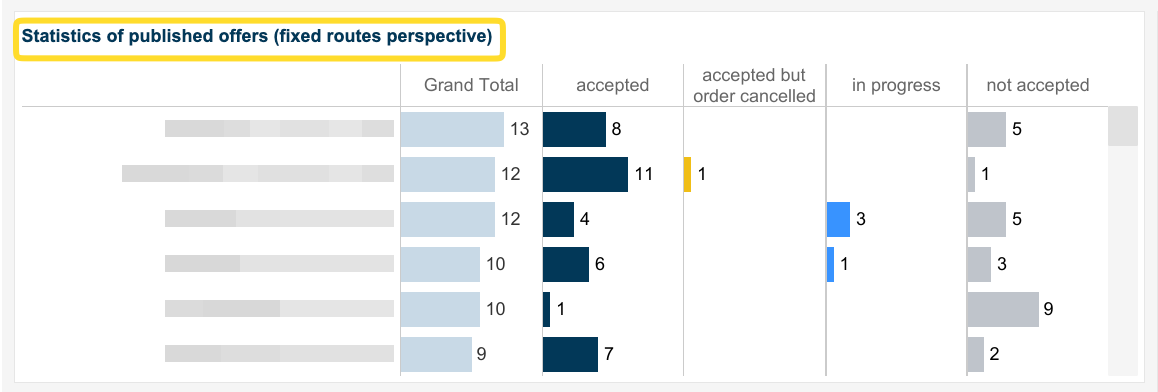
Depending on the data view settings, the chart shows the number of published offers (from the fixed route perspective) and received offers (from the carrier perspective), along with the acceptance and response rate.
In the fixed route view (Statistics of published offers Fixed routes perspective) it shows the number of published offers broken down by status. You'll find the following columns here:
Fixed route name
Grand Total – the total number of offers published within a given fixed route, regardless of status.
Accepted – the number of accepted offers.
Accepted but order cancelled – the number of accepted offers whose order was later cancelled.
In progress – the number of offers still under negotiation.
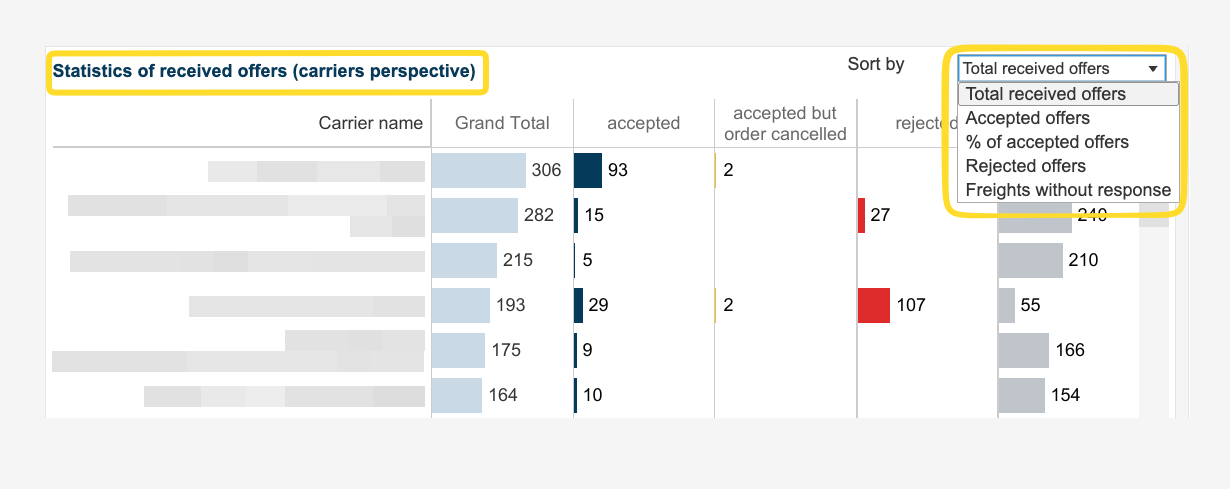
Not accepted – the number of offers that were not accepted.In the carrier view (Statistics of published offers carriers perspective) it shows the number of published offers broken down by status. You'll find the following columns here:
Carrier name,
Grand Total – the total number of offers received by a given carrier, regardless of status.
Accepted – the number of accepted offers.
Accepted but order cancelled – the number of accepted offers whose order was later cancelled.
Rejected – the number of offers rejected by the carrier.
Freights without response – the number of offers the carrier did not respond to.
In the carrier view you can also sort the data using the Sort by list, according to:
Total received offers – the total number of received offers,
Accepted offers – the number of accepted offers,
% of accepted offers – the percentage acceptance rate,
Rejected offers – the number of rejected offers,
Freights without response – the number of offers without a response.
After clicking on the fixed route/carrier name, the remaining charts in the report will adjust to your selection.
Chart Number of carriers in fixed route/fixed routes in which carrier has active contract
The content of this section depends on the selected data view. Data will be displayed for the fixed route/carrier selected in the Statistics of published/received offers charts.
The fixed route view (Number of carriers in fixed route) shows the number of carriers assigned to the selected fixed route, split into:
Active – carriers with an active contract on the given route,
Archival – carriers whose contract on the given route has been archived.
The carrier view (Number of fixed routes in which carrier has active contract) shows on how many fixed routes the selected carrier has an active contract.
Chart Statistics of published and received offers
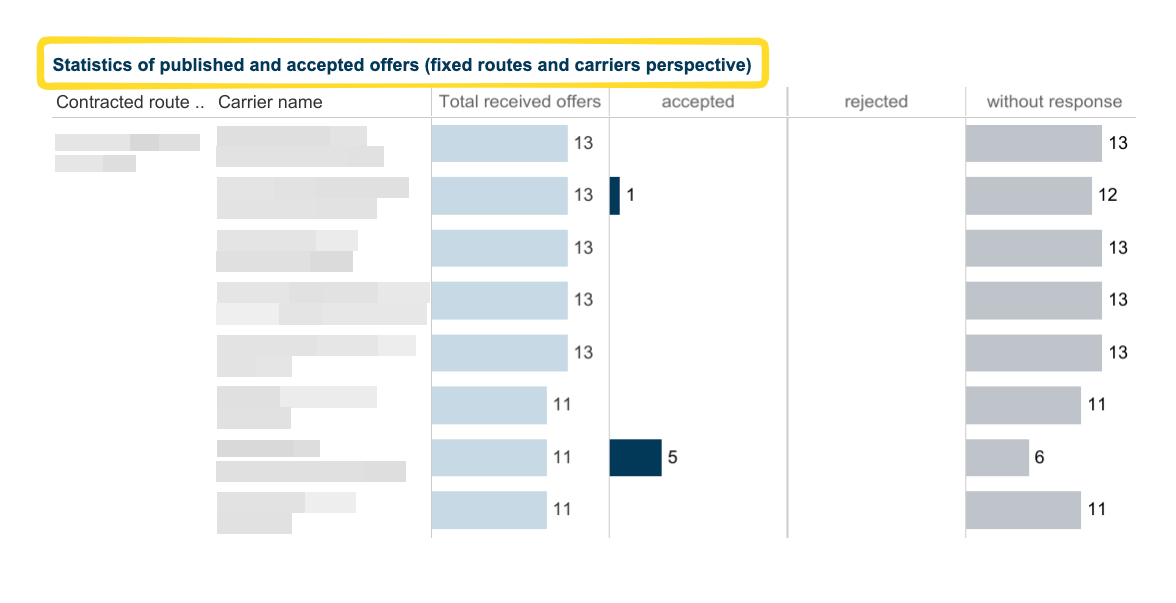
The chart combines fixed route and carrier data in a single view - each row shows a specific pair: a fixed route and the carrier assigned to it.
Columns:
Contracted route – the name of the fixed route,
Carrier name – the name of the carrier assigned to this route,
Total received offers – the total number of offers published on the given route and sent to the given carrier,
Accepted – the number of offers accepted by the carrier,
Rejected – the number of offers rejected by the carrier,
Without response – the number of offers the carrier did not respond to.
This view lets you quickly check what cooperation with a specific carrier on a specific route looks like - e.g. whether a given carrier systematically responds to offers on a given route.
Table Number of published offers by Loading place/Unloading place/Route
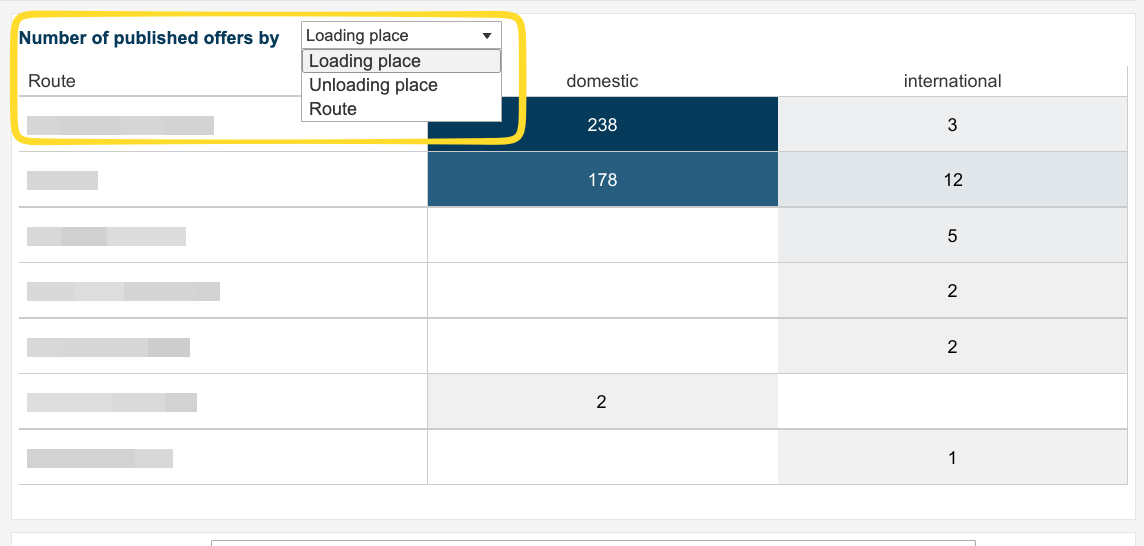
This section shows the number of published offers split by direction (domestic, international).
Using the drop-down list in the top left corner of the section, you can choose the criterion by which the data should be grouped:
Loading place – by loading location,
Unloading place – by unloading location,
Route – by specific route.
Depending on the selected option, the table rows will show, respectively, specific loading places, unloading places, or routes, and the numbers in the domestic and international columns show how many offers were published for a given location/route in each of these directions.
Chart List of carriers/fixed routes in...
The last section of the dashboard shows a list of carriers or fixed routes, depending on the selected data view.
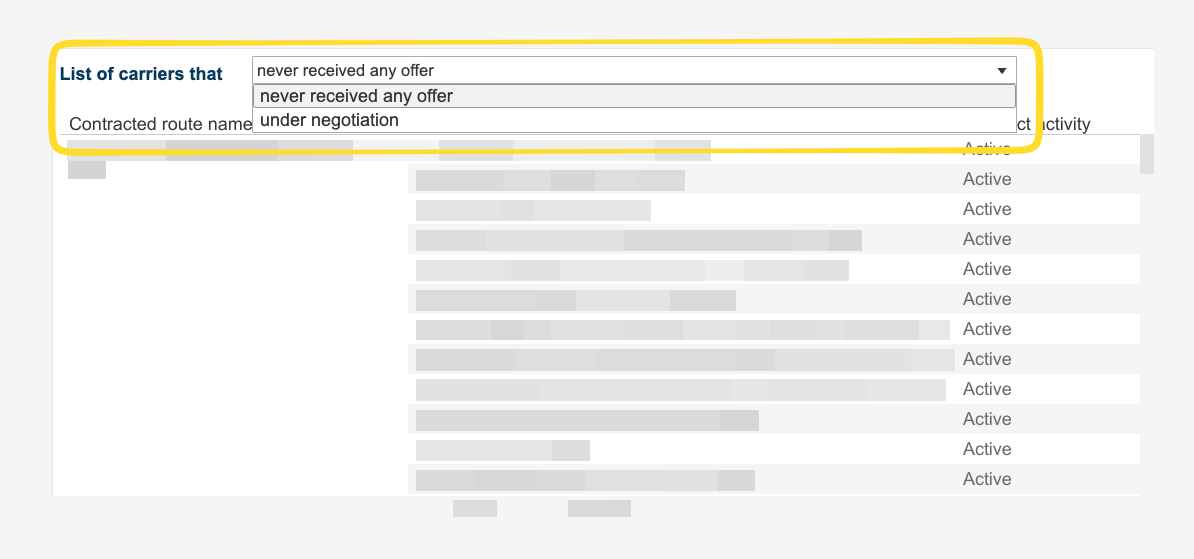
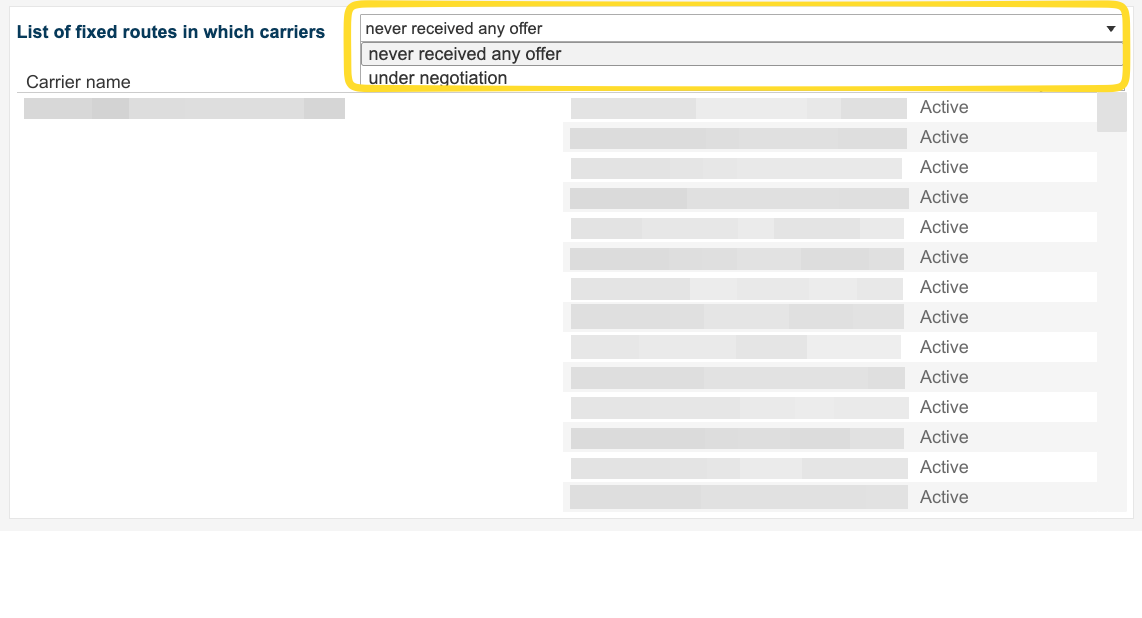
Using the drop-down list in the top left corner of the chart, you can select the type of list you need:
never received any offer – items that never received any offer,
under negotiation – items whose offer is currently under negotiation.
The fixed route view (List of carriers that...) shows, for the selected fixed route, a list of carriers who never received an offer on this route (or whose offer is under negotiation). In the table you'll find the route name (Contracted route name), the carrier name, and the contract activity status for this fixed route.
The carrier view (List of fixed routes in which carriers...) shows, for the selected carrier, a list of fixed routes on which they never received an offer (or the offer is under negotiation). In the table you'll find the carrier name (Carrier name) and the contract activity status (Contract Activity).
 Updated 2 months ago
by
Katarzyna
Updated 2 months ago
by
Katarzyna