Routes with shippers
 Updated 1 week ago
by
Katarzyna
Updated 1 week ago
by
Katarzyna
- Receiving a route offer
- Negotiating the terms of a route offer
- Automatic Acceptance
- Rejecting a route offer
- Suspending a contract
- Ending cooperation on a route
- Route removal by the principal
- Flexible cooperation
- Assigning a contact person to a route
- Change of contact persons on multiple routes at the same time
Who can use this feature? The feature is available to users of the Trans.eu Platform who have access to the Routes with Shippers module (product lines TFF - Trans for Forwarders and TFC - Trans for Carriers). |
In this article you will learn:
- how to accept a route offer,
- how to accept a flexible cooperation offer,
- how to negotiate the terms of a route offer,
- how to assign a contact person.
Thanks to the routes with shippers module, you have the opportunity to receive regular orders in cooperation with trusted contractors. In one place you can check the payment term, offer details, freight data and planned shipments.
Receiving a route offer
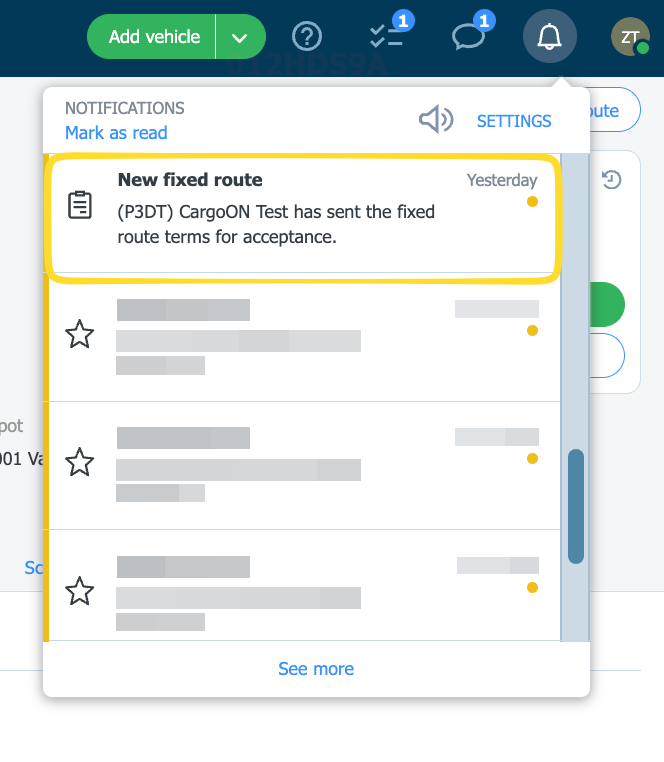
- When a shipper sends you a route offer, we will notify you about it. By clicking on the notification, you will go directly to the Routes with Shippers module.
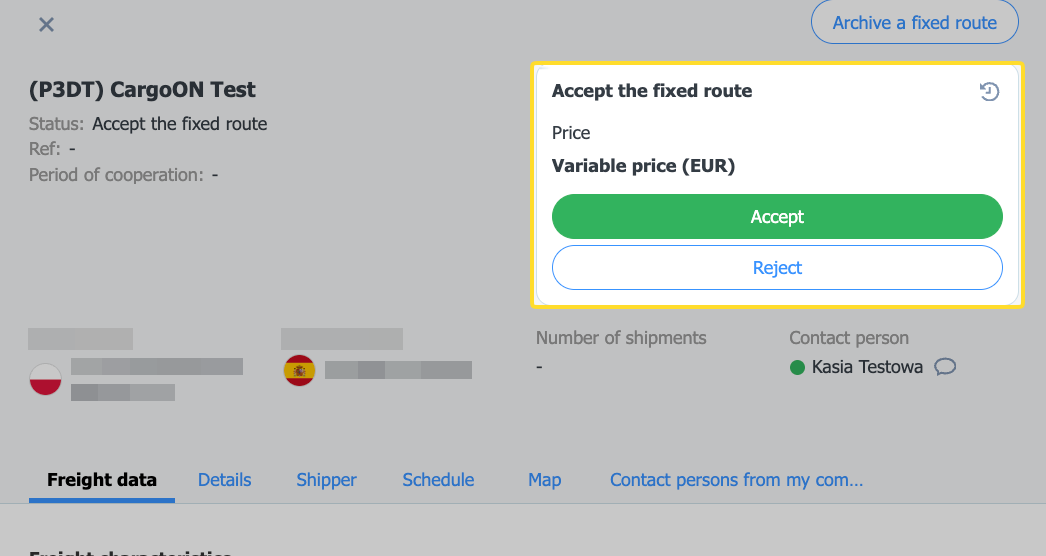
- After clicking on the offer, a window with its details will open:
- Freight data contains information about the required vehicle (vehicle size, body type, load capacity) and the type of cargo.
- Details - here you will find the terms of the order, including the payment deadline.
- Shipper - information about the contractor.
- Map together with the Route Planning Assistant.
- Schedule - planned shipment dates (if indicated by the shipper).
- Contact persons from my company - a list of colleagues assigned to the route by the shipper.
Payment methods
The shipper can propose:
- Flexible cooperation – price agreed for each transport
Or cooperation with rates:
- Price per trip – fixed rate (negotiable)
- Price per ton – for bulk materials (also negotiable).
- Pallet price list – for palletized loads
- Per kilometer – rate depending on the number of kilometers driven, with the option of choosing the basis for settlement (calculation by the principal, the contractor, or GPS data).
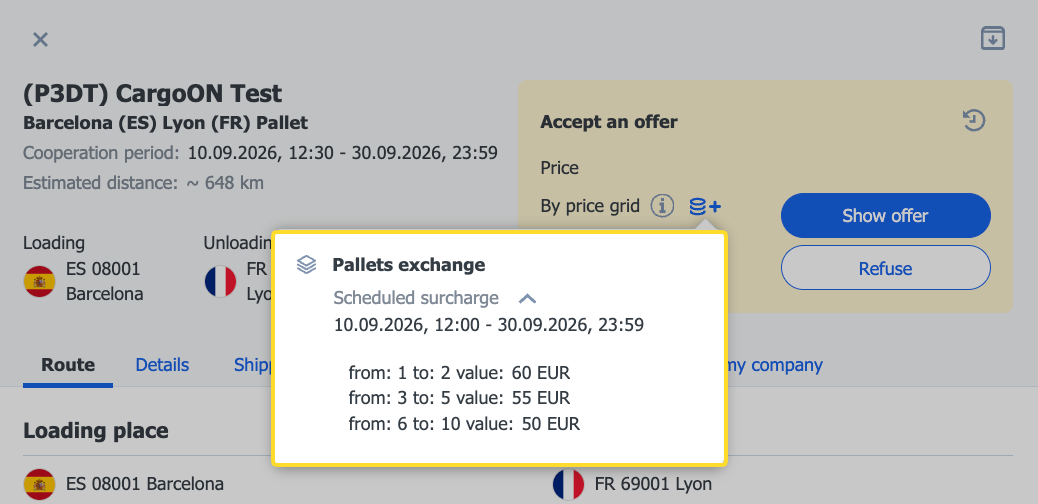
If you see a coin icon in the price box, it means a surcharge has been added to the base price (e.g. fuel or for an additional operation point). Click the icon to see the details - the type of surcharge, its validity period, and the value.
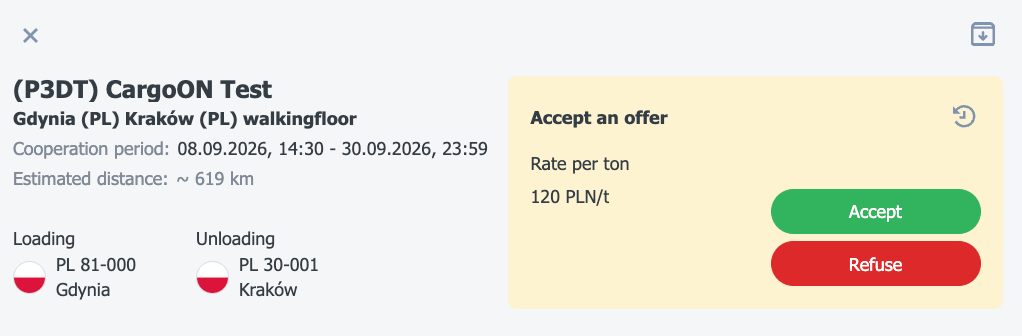
- If the terms are suitable, click Accept.
You will find the accepted route on the list of routes.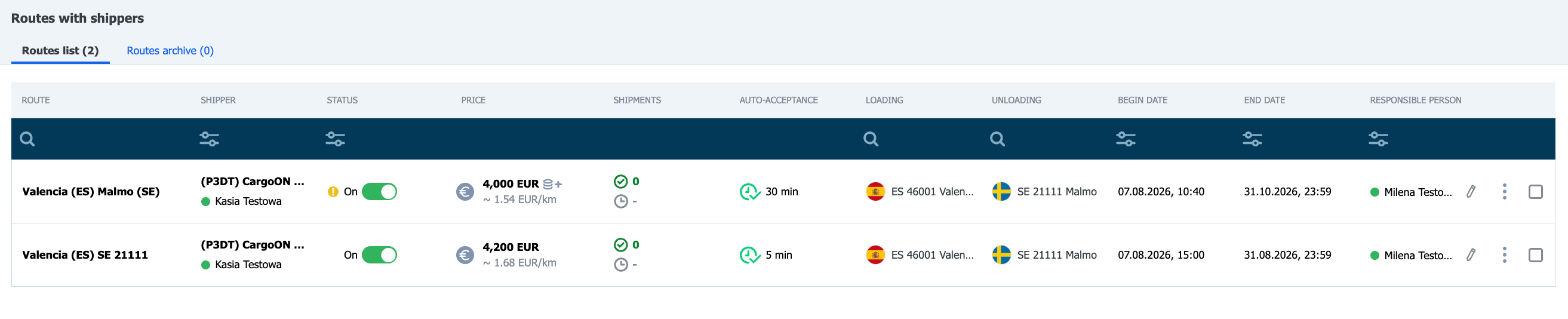
Negotiating the terms of a route offer
If the principal has enabled price negotiation, the offer will have the status "Propose a price". In this case, you can propose your own rate in the following situations:
- The price field is empty – enter your proposal.
- A price has been proposed, but the field is editable – you can change the value and submit a counteroffer.
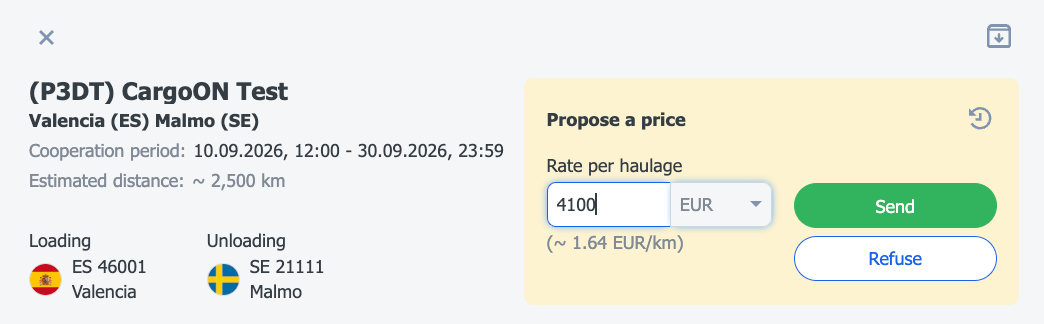
- Enter your proposal and then click Send. The offer will change status to Your offer is awaiting acceptance.
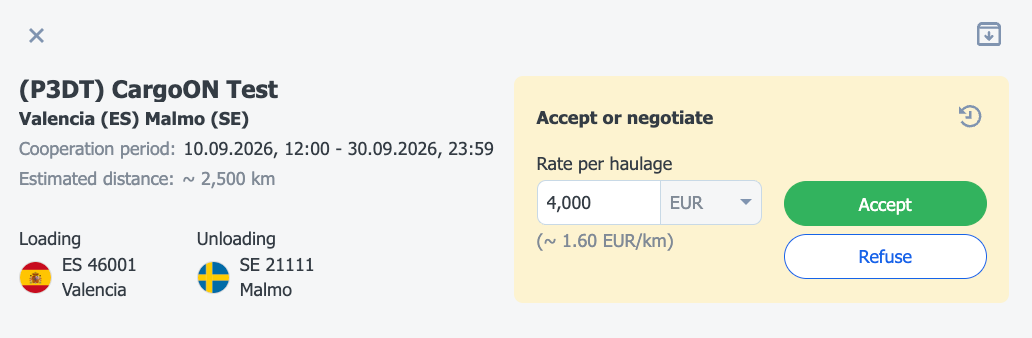
If you wish, you can Refuse the offer. - The shipper can accept your rate or send a counteroffer. You can accept, reject, or continue negotiating the new proposal.
Automatic Acceptance
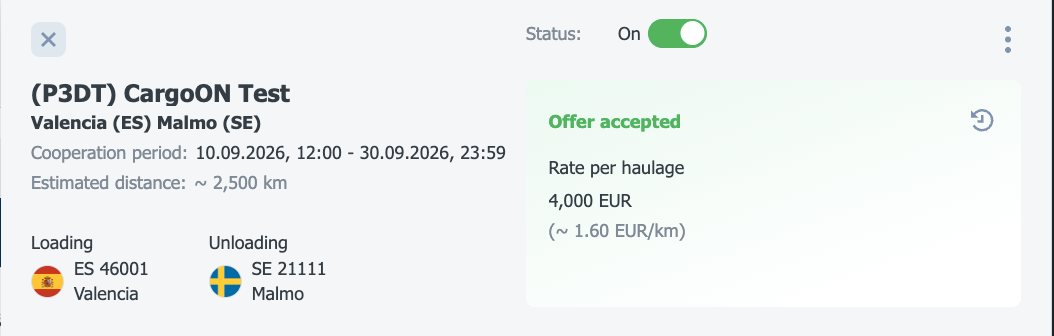
If you have agreed on the route terms with the shipper outside the platform (e.g., in a contract), the shipper can accept the contract on your behalf. The contract is then active immediately without your acceptance on the platform, and the shipper can instantly publish freights for this route.
By selecting this option, the shipper declares that the terms match your agreement and takes responsibility for this confirmation.
How You Will Know About It
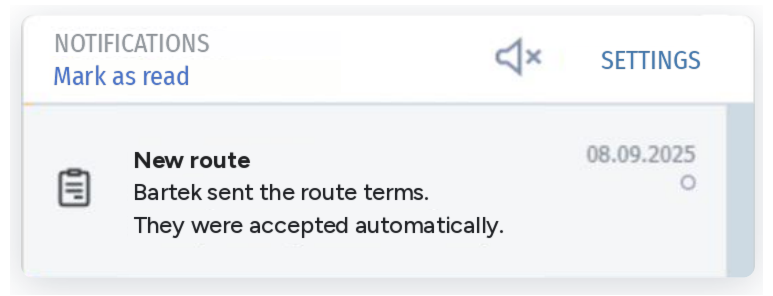
- Notification: The moment it is accepted, you will receive a notification (bell icon) stating that the shipper has submitted the route terms and they have been automatically accepted.
- Contract Details: Next to the contract status, you will see a note indicating that the contract was activated based on the shipper’s declaration. This allows you to distinguish it from contracts you accepted yourself.
Rejecting a route offer
If you do not want to accept the route offer:
- Click Refuse
- Provide the reason and confirm your decision using the Refusebutton.
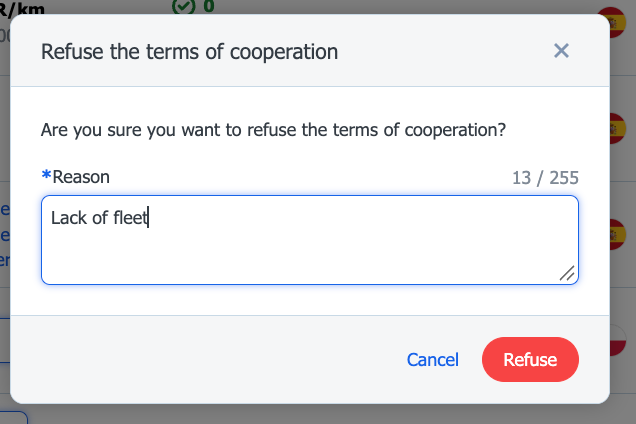
The reason for rejection and the status of the offer will appear in the offer details window.
Suspending a contract
To suspend contract activity:
- In the Routes with Shippers module, select the three-dot icon next to the route,
- Move the slider

- Select the date until which you are suspending the selected route. Enter the reason for the suspension, confirm by clicking the Suspend button. The information will be sent to the shipper.
- The slider in the Status column will turn gray.
If you want to restore the route's activity, use the slider again.
Ending cooperation on a route
If you want to remove a route whose terms your company has agreed to:
- Select the three-dot icon next to the route, and click Archive.
- Confirm your decision using the Archive button.
- The archived route will be moved to the Archived tab and will have the status Completed.
Route removal by the principal
If the principal decides to end cooperation on a given route, you will receive a notification.
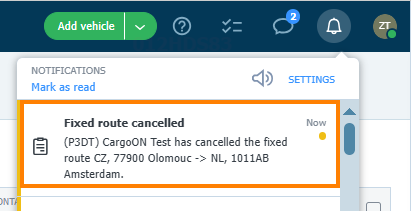
The route will be moved to the Archived tab.
In such a situation, you will receive a notification about the new proposal.
Flexible cooperation
In flexible cooperation, there is no fixed, pre-agreed rate. Each time, you can decide whether you want to accept the order and at what price.
If the shipper invites you to such cooperation and indicates you as the contact person, you will see the invitation directly on the platform - regardless of which module you are currently working in.
- In the module with the flexible cooperation proposal you will find:
- information about who is sending you the invitation and which route the cooperation concerns (1),
- tiles for choosing the notification method (2),
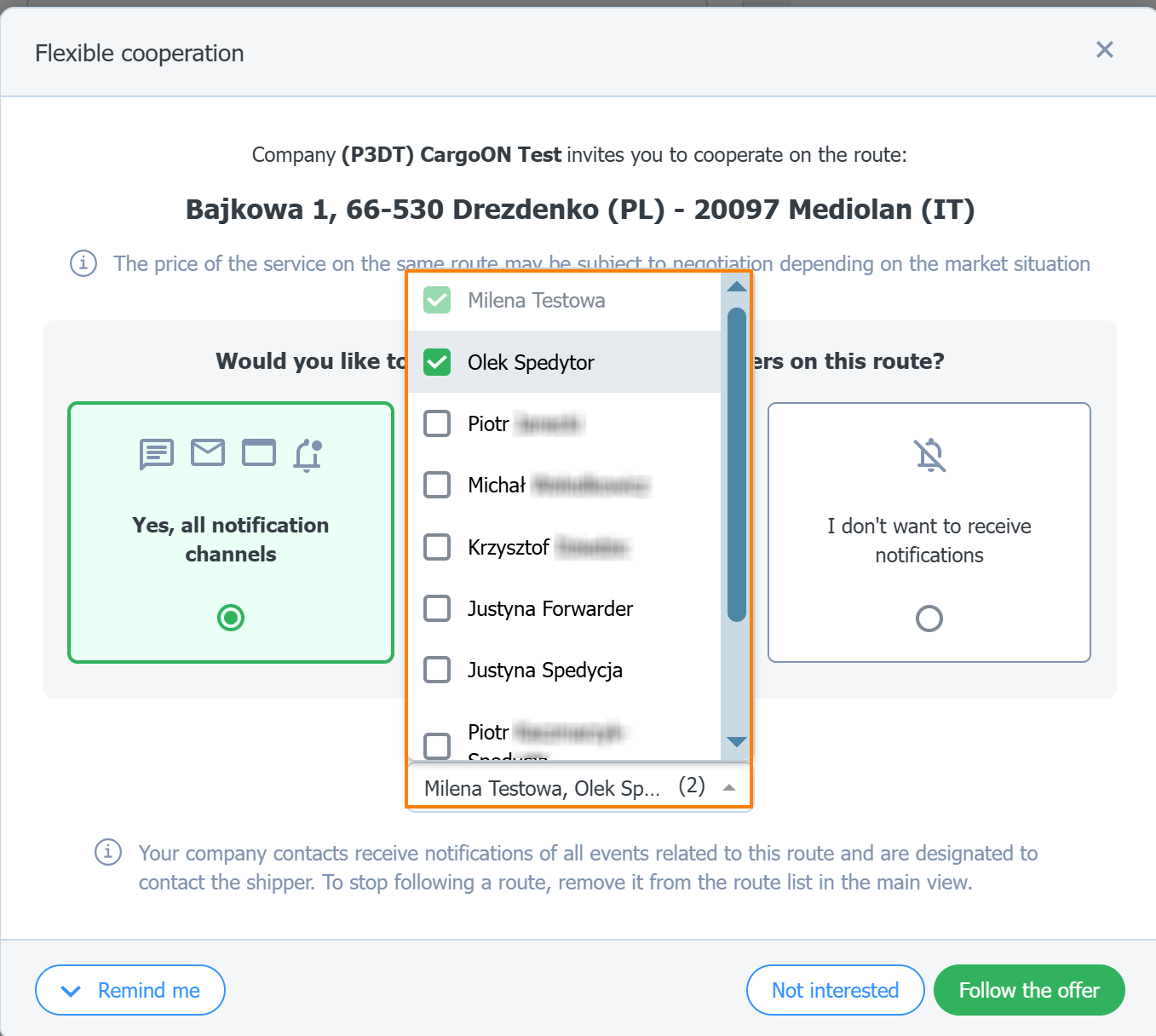
- a drop-down list of contact persons from your company (3)
- a bar with buttons allowing you to make a decision regarding the invitation (4)
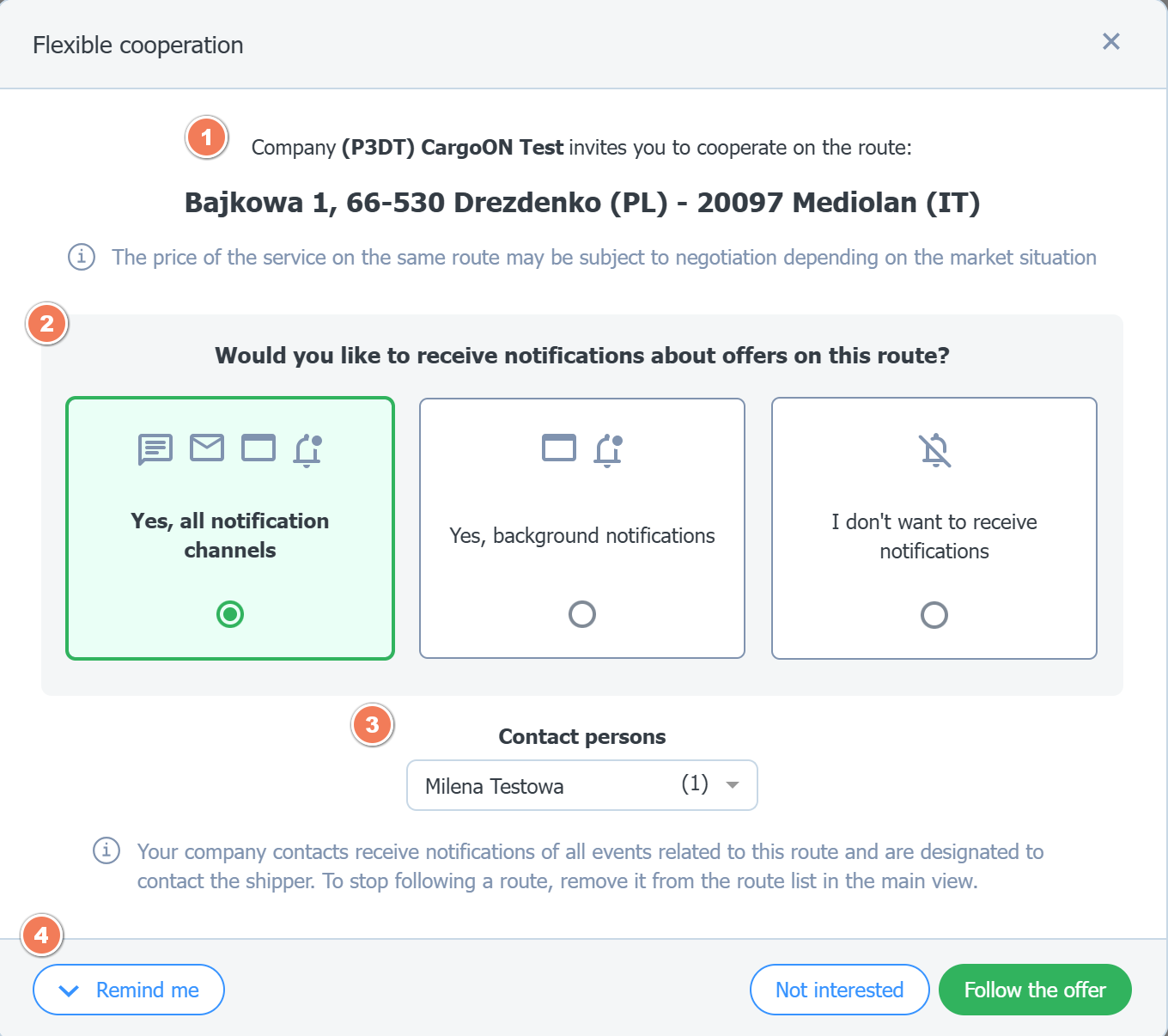
- Choose how you want to receive information about available loads within this route.
- through all communication channels (messenger, e-mail, platform),
- only through the platform (internal notifications),
- no notifications (freight offers will be available in the Search for Loads module, under the For me tab.

- Select additional contact persons who will receive notifications about all events related to this regular route.
You can designate up to 10 such persons. You cannot remove yourself from this list.
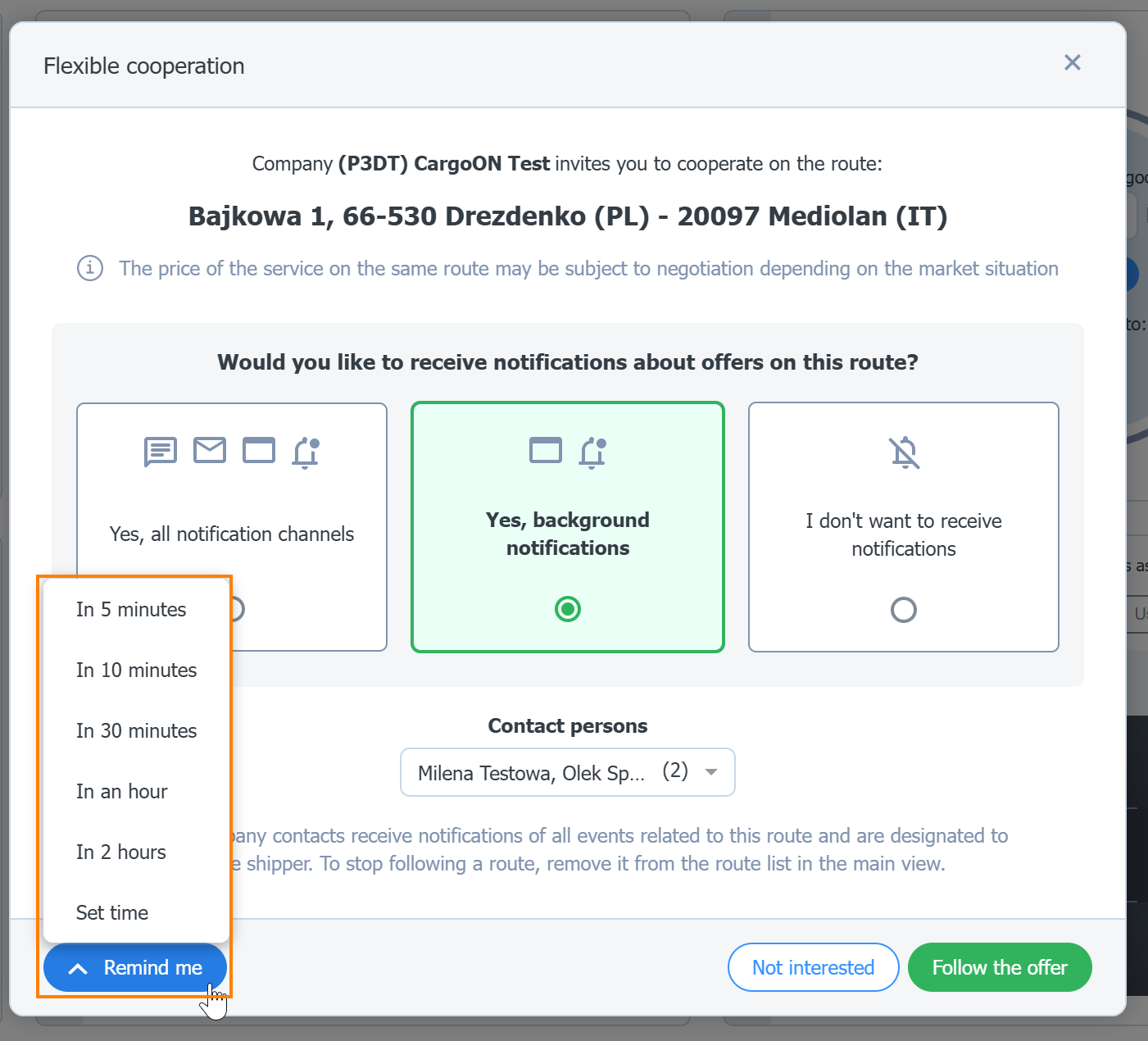
- If you cannot make a decision at a given moment, use the reminder option. Click Remind me and choose or set the time after which the invitation will appear again on your screen.
- You can respond to the cooperation invitation by:
- accepting - by clicking the Follow the offer button,
- rejecting - by clicking the Not interested button.

Accepting the invitation through the Decision Panel
If you were not online at the time the offer was sent, or the shipper did not indicate a specific contact person, the invitation will go to the Decision Panel:
- click on the panel icon,

- find the invitation on the list of decisions to be made,
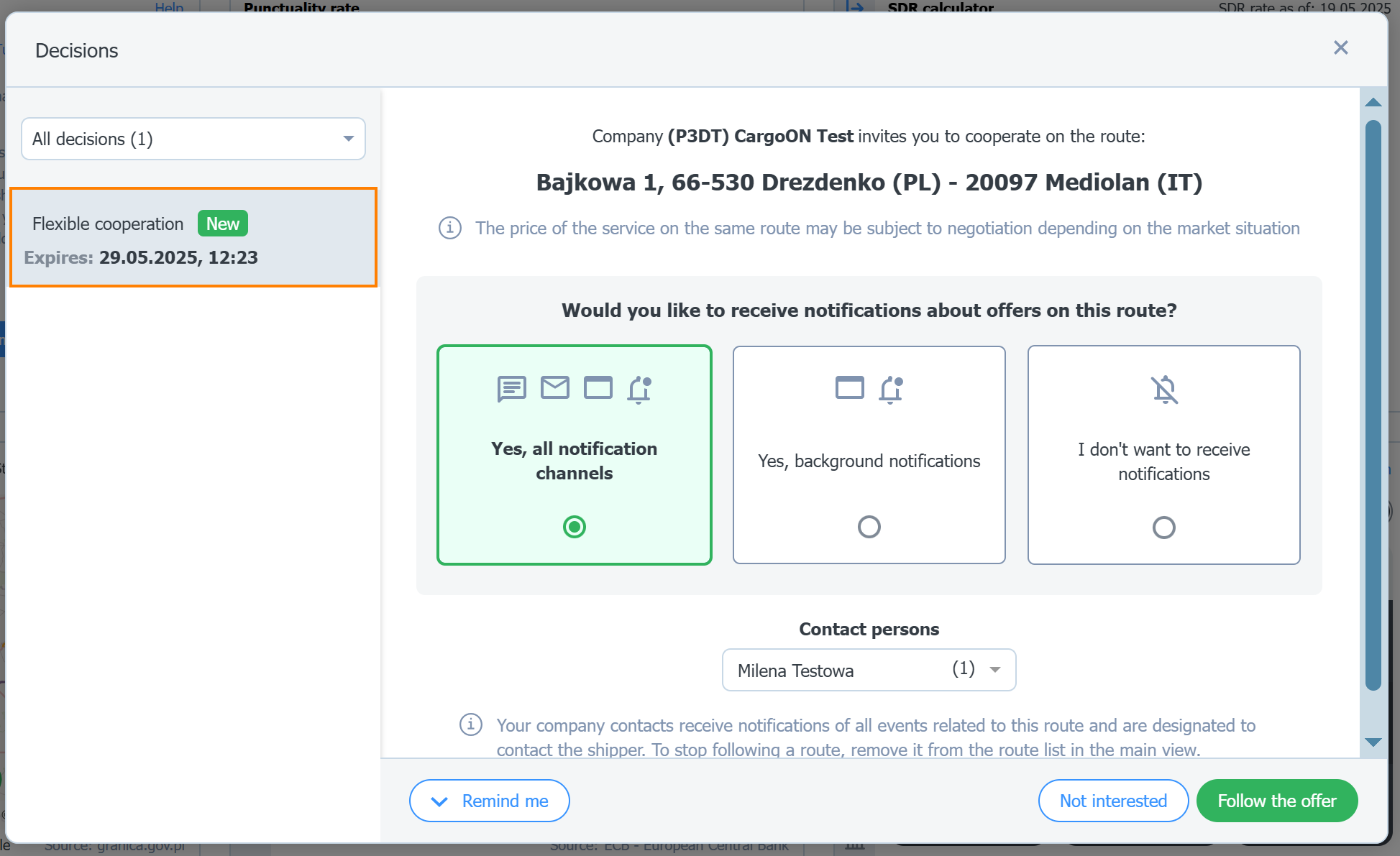
- choose one of the available options: Remind me, Not interested, I want to follow.
Assigning a contact person to a route
When sending the route offer, the shipper may have indicated a contact person from your company. After receiving the route offer, you can edit this choice or add additional persons. Assigned persons will receive all notifications related to the given route and will be able to contact the principal directly.
You can assign, change, or remove a contact person in two ways:
- on the list of routes in the Routes with Shippers module,
- in the details of the selected route.
Managing a contact person on the list of routes
- Go to the Routes with Shippers module.
- On the Route List, find the Responsible Person column.
- Hover over the assigned person and click the pencil icon.
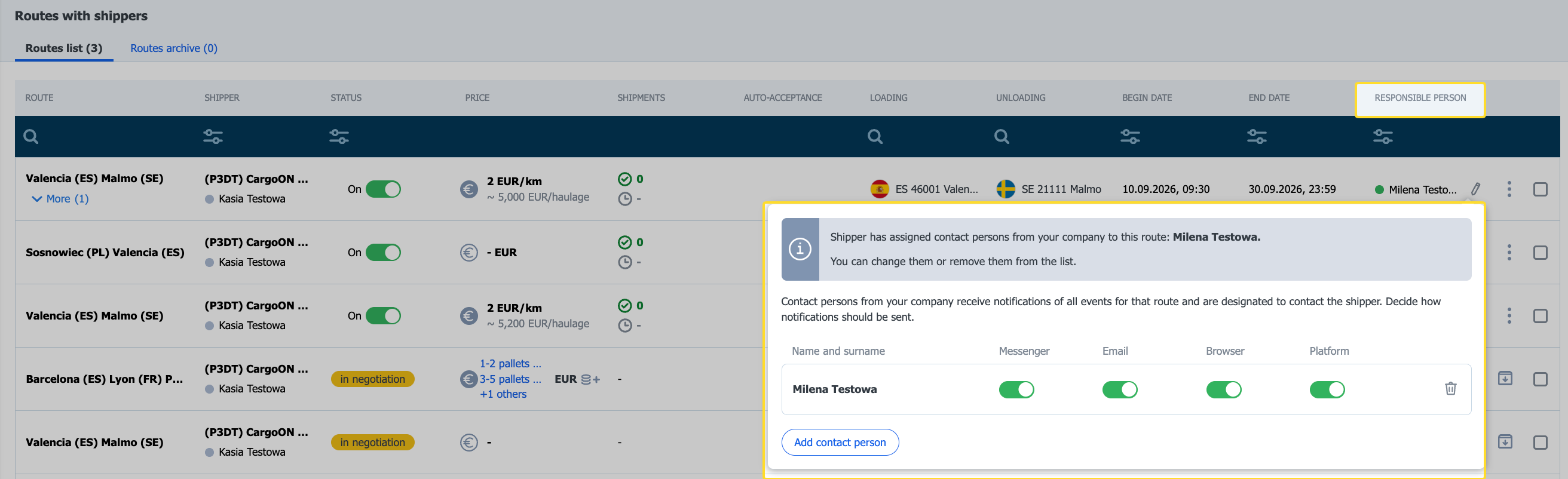
- You can add contact persons using the Add contact person button.
- For each person, you can set notification preferences for: messenger, e-mail, browser, or platform.
Change of contact persons on multiple routes at the same time
Do you have many routes with one or more shippers? You can change the contact persons on all selected routes at once. You don't have to go into each route separately.
- Go to the Routes with Shippers module.
- In the Routes List, select the routes for which you want to change the contact persons. To select all routes from the list, choose Select All.
- From the action menu, select Change Contacts.
- From the drop-down list, select one or more people from your company and click Add.
- For each person, enable or disable notification channels: Messenger, Email, Browser, and Platform. To remove a person from the list, select the trash icon.
- Click Save Changes.
The new list replaces the existing contact persons on all selected routes. Persons not selected will be removed from these routes and will no longer receive notifications about them.
