Functions of the Route modules

Who can use this feature? CargoON users who have access to the Routes with Carriers module, and Trans.eu Platform users who have access to the Routes with Shippers module (product lines TFF and TFC). |
From this article you will learn:
- how the Routes modules differ
- how to navigate the modules
- how to check Route details
Routes is a Platform module in which shippers and carriers can manage ongoing cooperation and contracts with trusted business partners.
Module capabilities
Routes with Carriers | Used to organize and manage a network of carriers handling recurring routes:
|
Routes with Shippers | Used to handle inquiries and standing orders from shippers:
|
The Routes with Carriers module was designed for manufacturing and trading companies that have ongoing transport needs on recurring routes and want to manage cooperation with their partners in one place (both less and more formal, as well as flexible forms of cooperation within Routes without a price). It is available to customers of the CargoON and Trans for Forwarders (TFF) product lines.
The Routes with Shippers module is intended for companies that carry out transport as part of ongoing cooperation with a business partner. It is available to customers of the forwarder and carrier product lines - Trans for Forwarders (TFF) and Trans for Carriers (TFC).
Navigation in the Routes with Carriers module
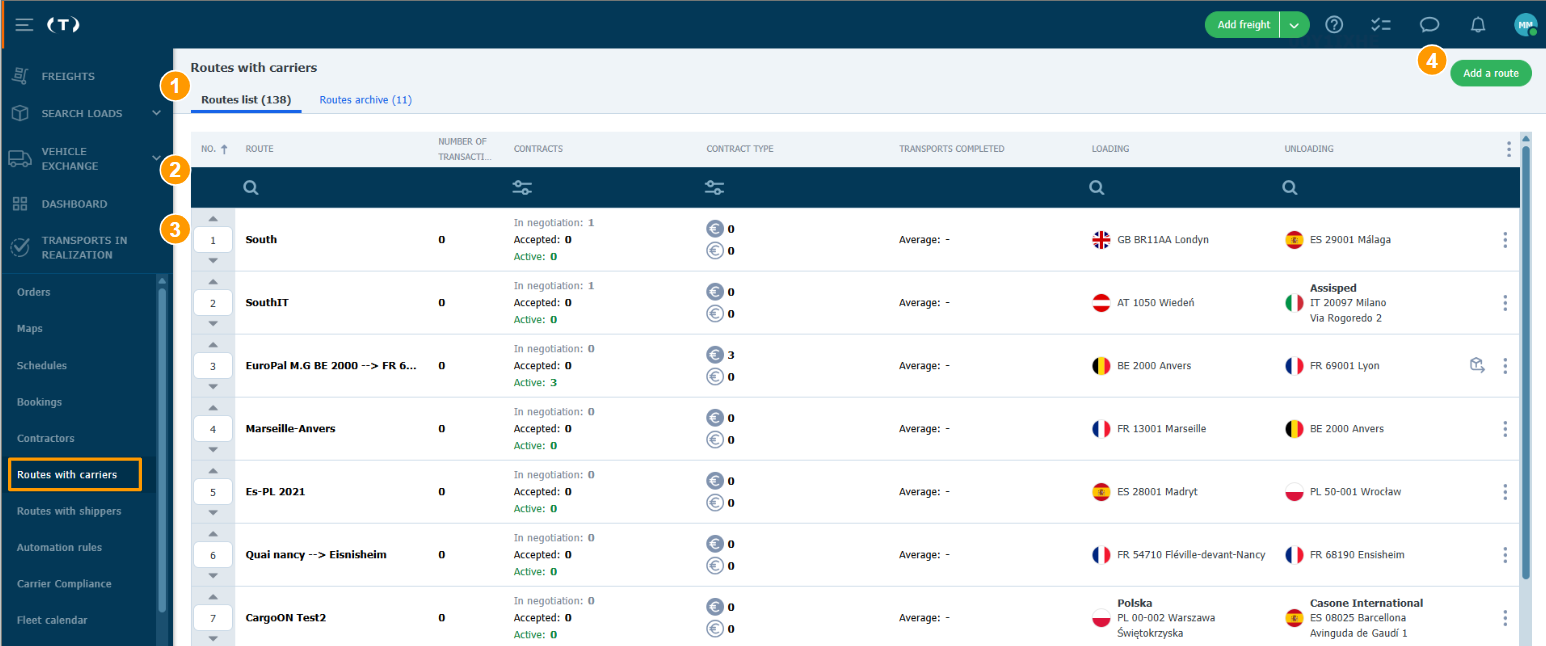
Click the Routes with Carriers module in the main menu. In the module you will find:
- The Active and Archived tabs:
- Active where all Routes you have created will appear.
- Archived where archived or completed Route contracts will be moved.
- A search field along with filters.
- Route details.
- A button that opens the form for creating a new Route.
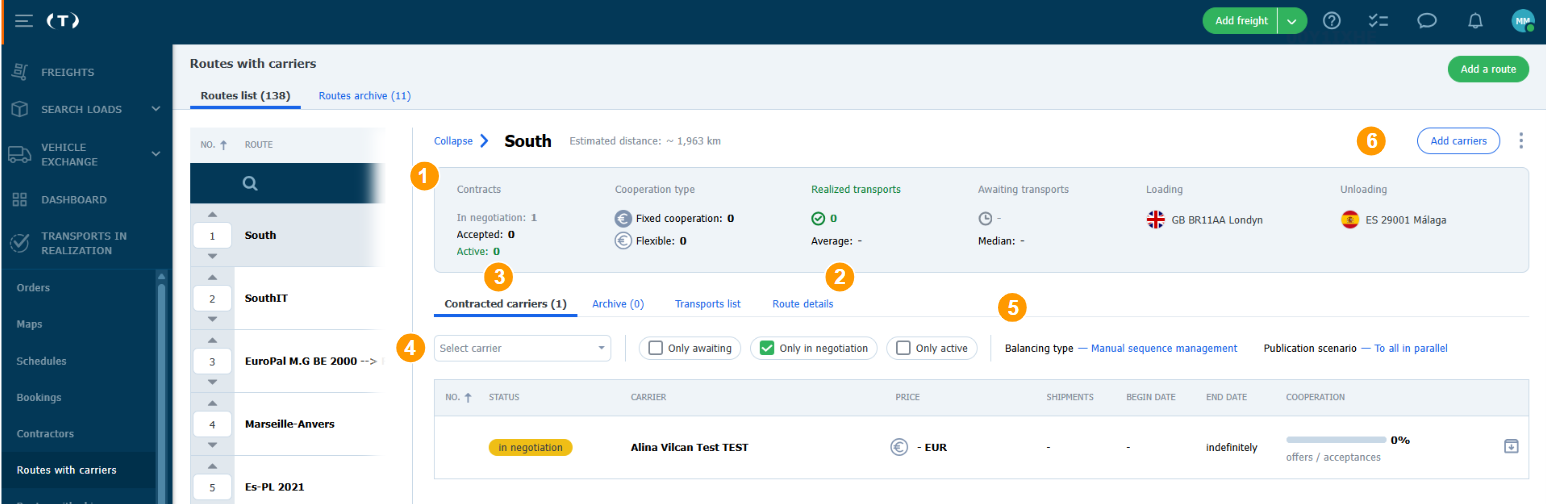
When you click on a selected Route in the table on the left, a panel will appear on the right with detailed information about the route's terms and the progress of negotiations with carriers.
This view contains the following elements:
- Route summary and status – at the top of the view you will find a summary of the route's key parameters, such as:
- Estimated distance and the loading and unloading points.
- Number of contracts broken down by status (In negotiation, Accepted, Active).
- Type of cooperation (Fixed rate, Flexible).
- Fulfillment statistics (number of completed and pending shipments).
- Route details - a tab allowing you to view and edit the route's base parameters and general terms.
- List of contracted carriers – a table containing the list of all carriers to whom the route's terms proposal was sent.
- Carrier filtering – options allowing quick searching of the list (e.g., selecting a specific carrier from a drop-down list) and filtering by status (Pending only, In negotiation only, Active only).
- Balancing method and Publication scenario – a section for configuring the rules for allocating loads and the way inquiries are sent.
- Add carriers – a button in the top right corner allowing you to invite another carrier to negotiate the route's terms proposal.
Navigation in the Routes with Shippers module
Users of the carrier and forwarder plans have access to the Routes with Shippers module - tailored to their needs and cooperation with shippers.
Select the Routes with Shippers module in the main menu.
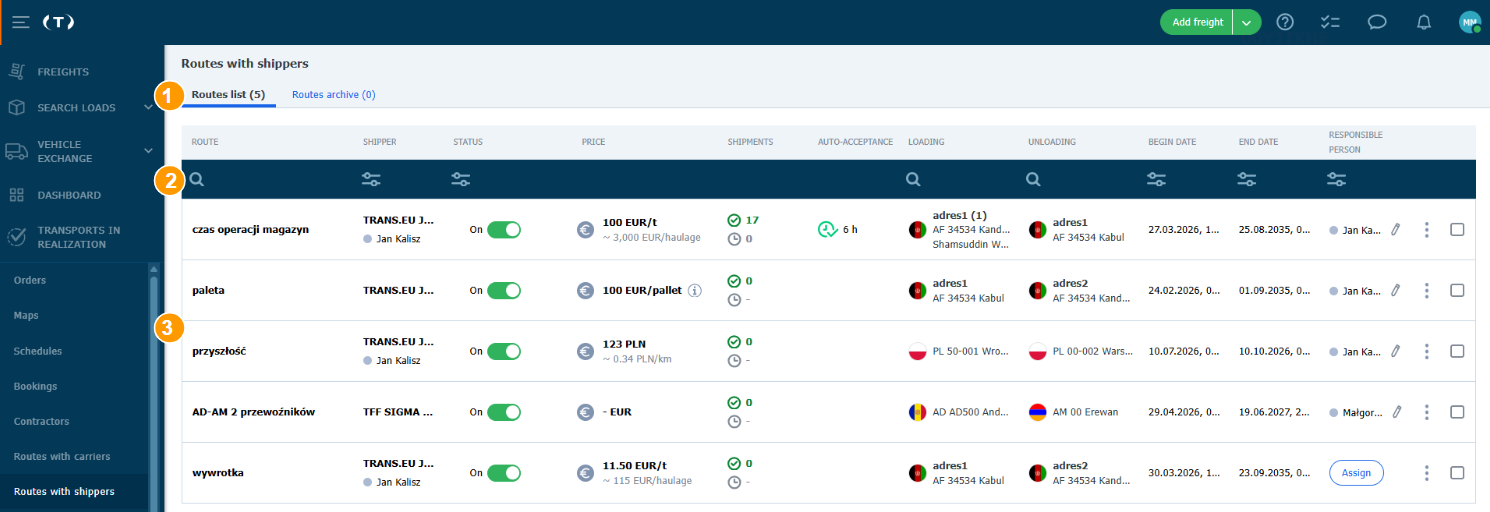
In the module you will find:
- Tabs split by carrier negotiation statuses.
- A search field and filters.
- Route details.
After clicking on a selected Route from the list, the detailed view will open
