Managing contact groups
 Updated 46 seconds ago
by
Marta
Who can use this feature? Feature available to all Trans.eu and CargoON platform users. |
In this article you will learn:
- what contact groups are for
- how to create a contact group
- how to add, rename or remove a group
- how to add users to a group
- who can see the groups you create
What are contact groups for?
Contact groups help you organize your business contacts. You can group them, for example, by route, vehicle type or level of cooperation, and then quickly find the right people when a new order comes in.
Who can see your groups?
Only you can see the group, its name and its description. People added to a group aren't notified.
Accessing contact groups
You can access contact groups in 3 ways:
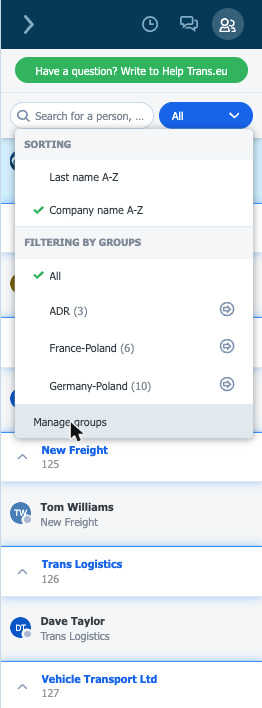
- From Messenger:
- go to the Contacts tab
- next to the search box, select All
- in the drop-down list, click Manage groups
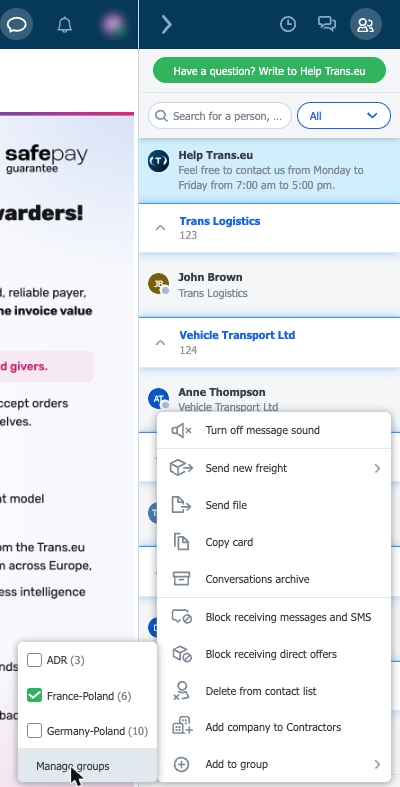
- From Messenger, next to a specific person's name:
- in the Contacts tab, search for any user
- click the three-dot icon next to their name
- in the drop-down list, select Add to group > Manage groups
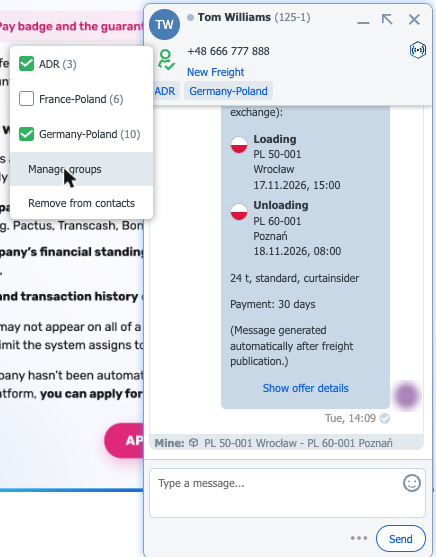
- In a Messenger chat window:
- click the person icon
- in the drop-down list, select Manage groups
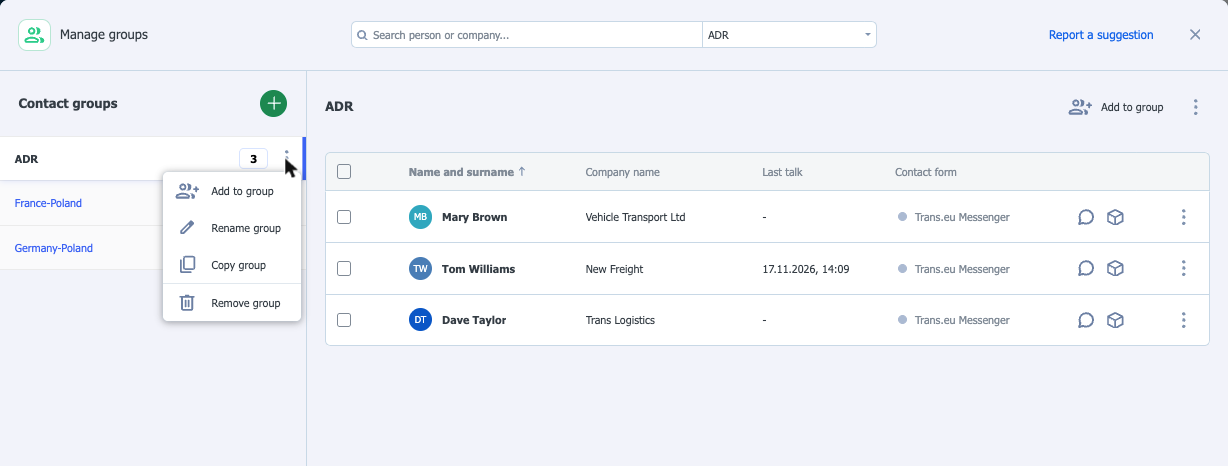
Managing contact groups
Whichever of the paths above you use, you'll move on to the next step, where you can add, edit or remove a group.
- To add a group, click the green + button. Name the group, select the contacts you want to add to it and click Add group.
- To rename a group, click the three-dot icon next to its name, select Rename group, enter a new name and save your changes.
- To remove a group, click the three-dot icon next to its name, select Remove group and confirm.
When you click a group name, you'll see:
- the list of contacts added to the group,
- the date of the last conversation (Last talk) and the contact channel (Contact form).
Adding contacts to a group
You can add any user to a group – pick them from your contacts or search for them on the exchange. You can do this in four ways:
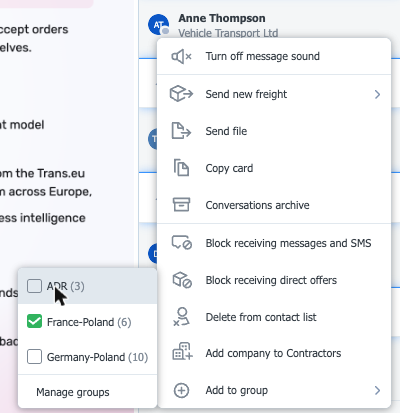
- From Messenger:
- select a person from your contacts or search for any user,
- click the three-dot icon next to their name,
- click Add to group,
- in the drop-down list, tick the group you want to assign them to (you can tick several).
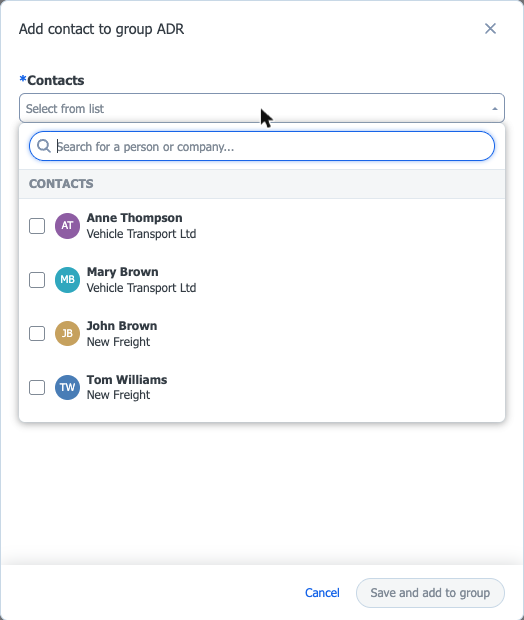
- From the Manage groups window:
- click the name of the group you want to add users to,
- in the top right corner, click Add to group (you'll find the same option under the three-dot icon next to the group name),
- in the Contacts field, tick or search for the people you want to add (you can select several at once),
- click Save and add to group.
- From another group's view:
- in the Manage groups window, click the name of a group the person already belongs to,
- click the three-dot icon in that person's row and select Add to another group,
- from the Contact groups list, select a group and click Add to group.
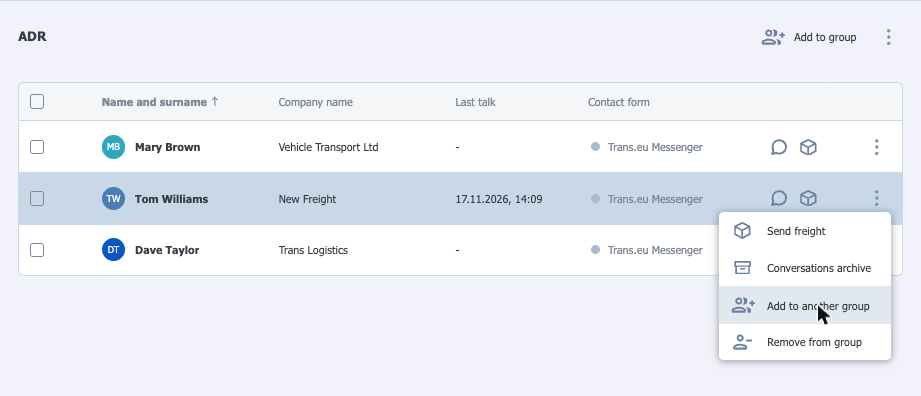
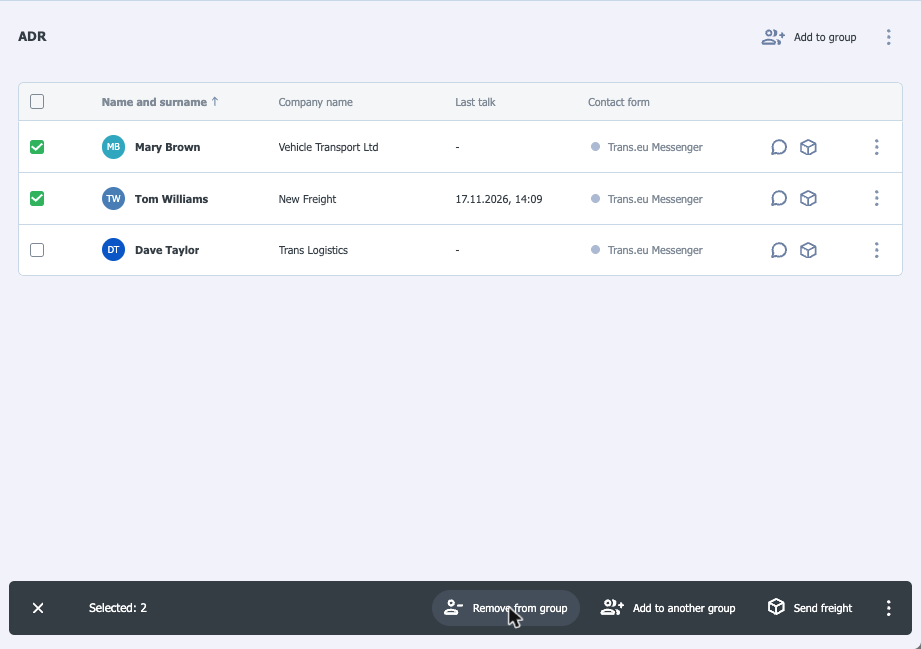
To add several people to another group at once, tick them in the table and click Add to another group in the bar at the bottom of the window.
- In the chat window:
- click the person icon,
- in the drop-down list, tick the group you want to assign them to (you can tick several).
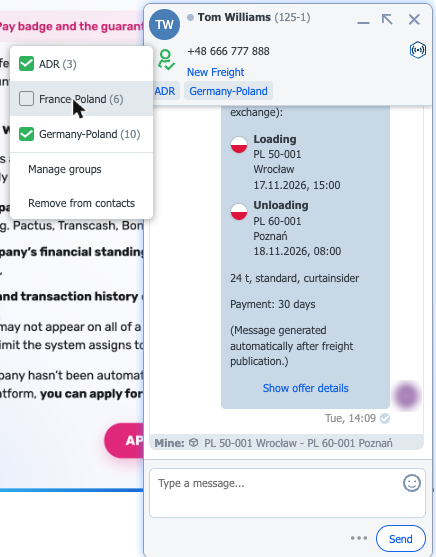
If a person is assigned to more than 2 groups, an additional label appears in the chat window showing the number of other groups they belong to. Hover over this label to see the names of those groups.
Removing users from a contact group
You can remove users from a group in the Manage groups window:
- click the name of the group you want to remove the user from,
- click the three-dot icon in that person's row and select Remove from group.
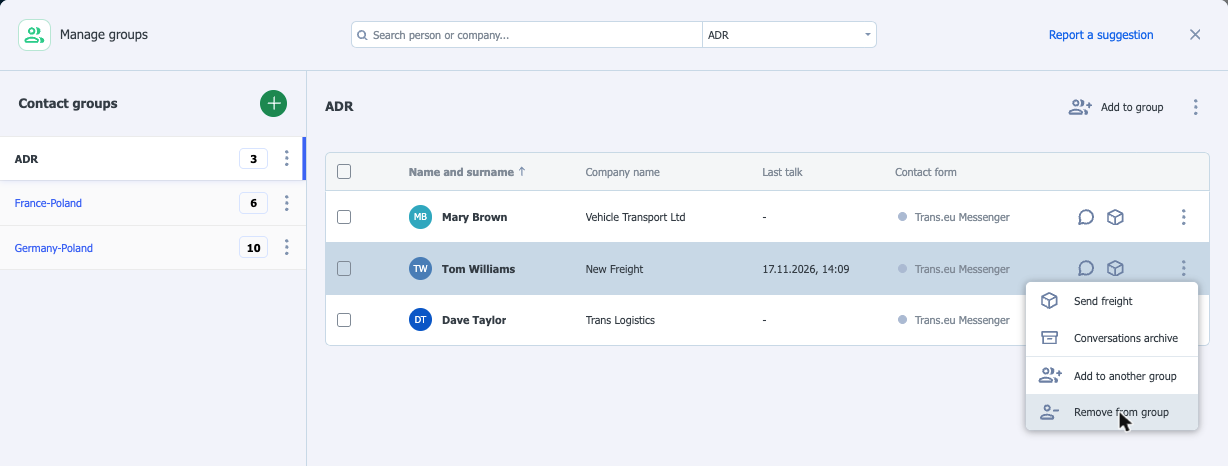
To remove several people from a group at once, tick them in the table and click Remove from group in the bar at the bottom of the window.