Product plan
 Updated 1 hour ago
by
Ania
Updated 1 hour ago
by
Ania
Who can use this feature? This feature is available to all users of the Trans.eu Platform and CargoON. |
In this article, you will learn:
• where to find the Product plan and what you can check there,
• what you will see at your stage of cooperation,
• how to check your agreement details and micropayments,
• how to cancel your subscription.
Product plan – where to find it and what you can check there
In the Product plan, you can check the status of your access, the terms of your agreement, and the date and amount of your next invoice – all in one place. You can also cancel your subscription here.
To open the Product plan:
- Click your avatar in the top right corner and select My company from the list.
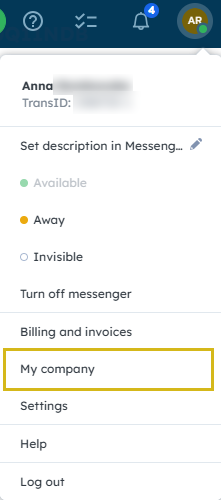
- Go to the Product plan tab.

What you will see in the Product plan
What you see in the Product plan depends on your stage of cooperation. Choose the situation that applies to you:
• You don't have an order yet – you will see your verification status and an order offer. Go to the section Product plan before placing an order.
• You are using a free trial (if available for your company) – you can check when your paid subscription starts and when we will issue your first invoice. Go to the section Product plan during the trial period.
• You have a paid subscription – you can check your current billing period, next invoice and micropayments. Go to the section Product plan with a paid subscription.
Product plan before placing an order
Until you place an order, you will see an order offer with the Order button in the Your available products section. Its content depends on your verification status, country of registration and your company's product line. You can also place an order before verification. If a trial period is available for your company, we will start it after you place your order and your company is successfully verified.
Every company must complete verification to get full access to the Platform. This helps us build a trusted community and increase transaction security.
You will find details in the article Company verification process. We describe account registration and ordering in the article Order window for TFC/TFF and CargoON.
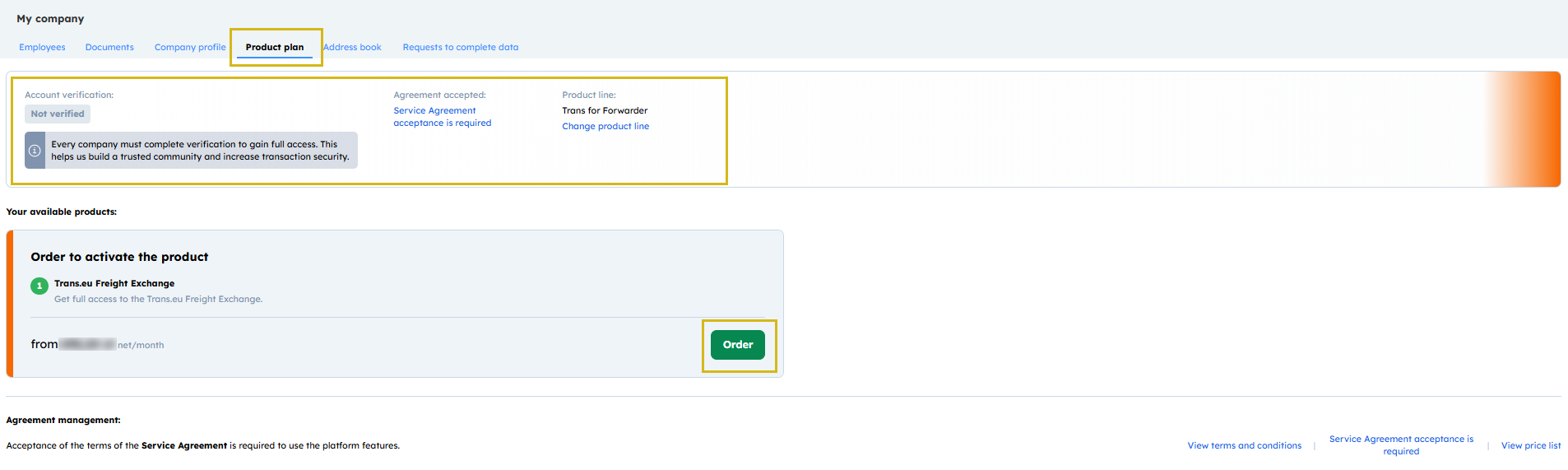
View before company verification
Right after registration, you will see the status Not verified in the Account verification field. You will find product details and the price in the Order to activate the product block.
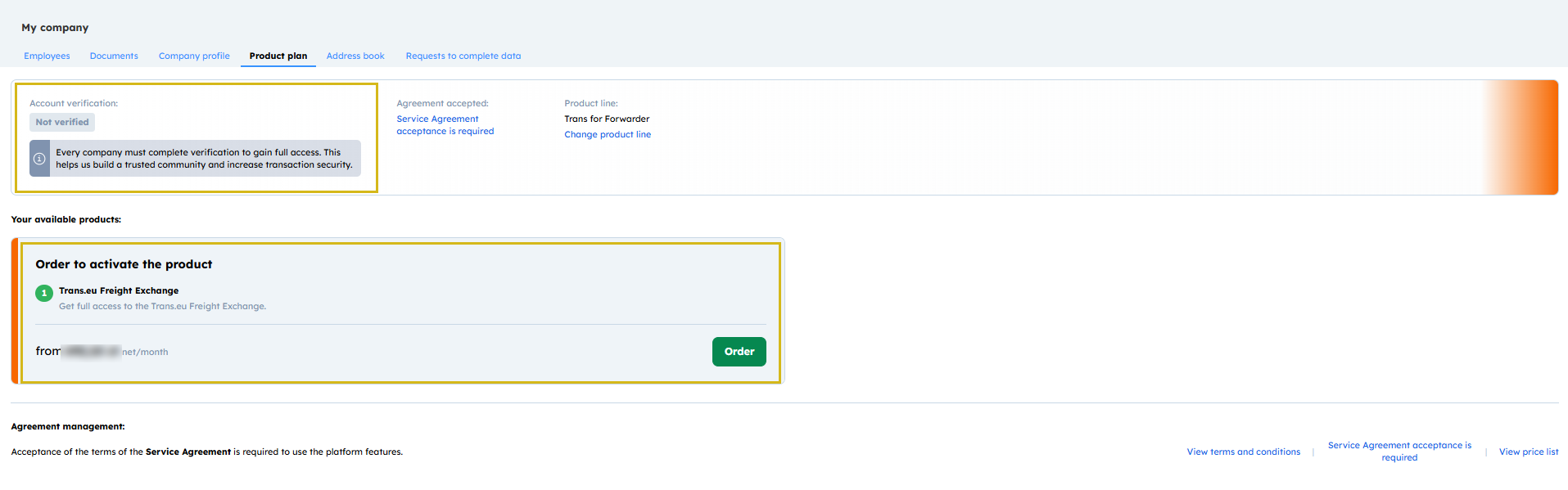
View after successful company verification
Once we confirm your company details, you will see the status Verification positive with a date in the Account verification field. If you are eligible for a trial period, you will find the details in the Order to activate the product with a free trial block.
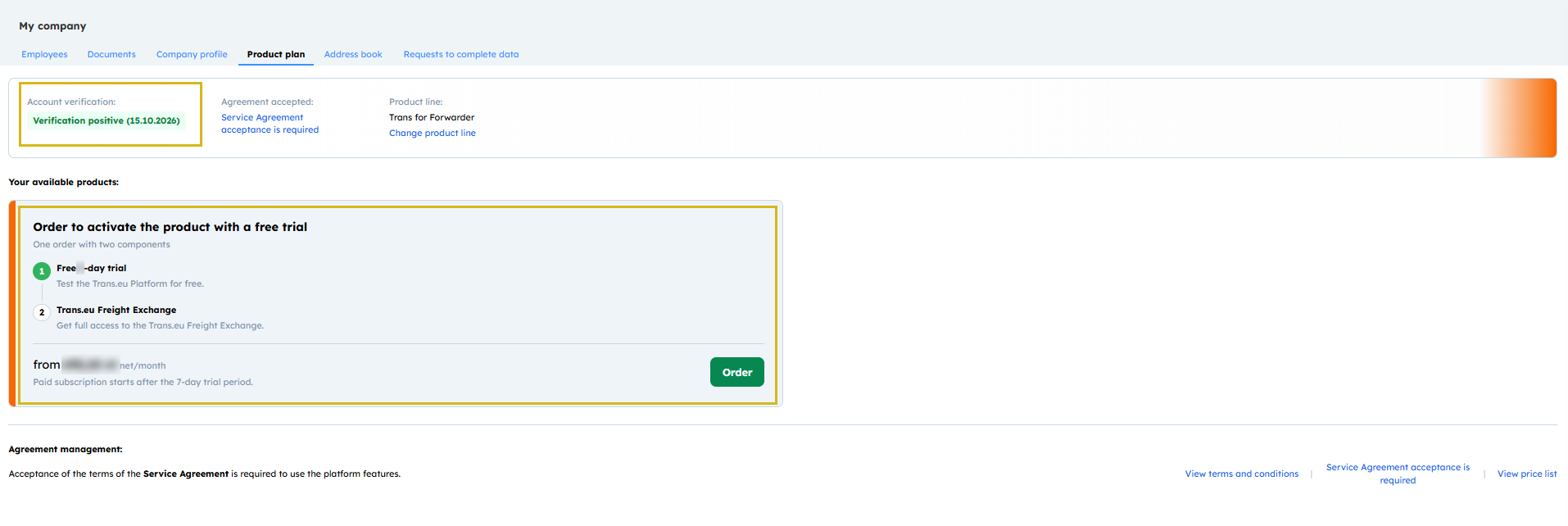
Accepting the agreement
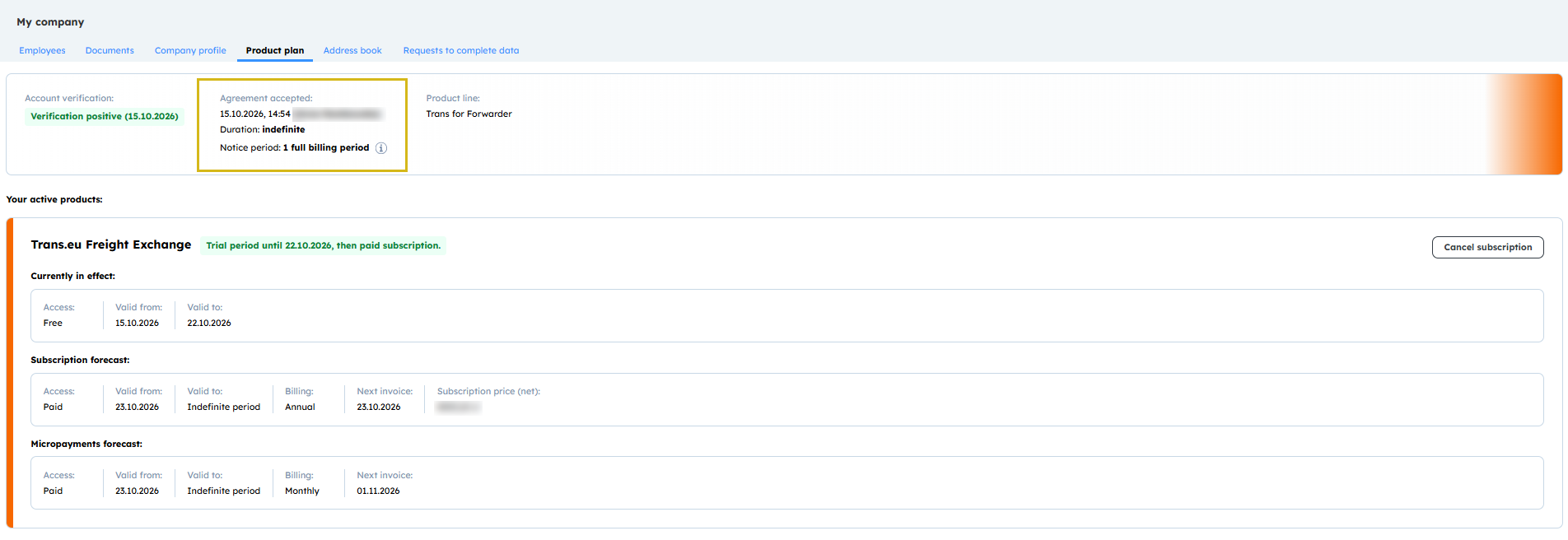
Until you accept the Service Agreement, you will see the link Service Agreement acceptance is required. You will accept the agreement while placing your order, after clicking Order. After acceptance, you will see the acceptance date and the person who accepted it in the Agreement accepted field.
Product plan during the trial period
This section applies to companies for which a free trial period is available. Its availability depends on your country of registration and product line.
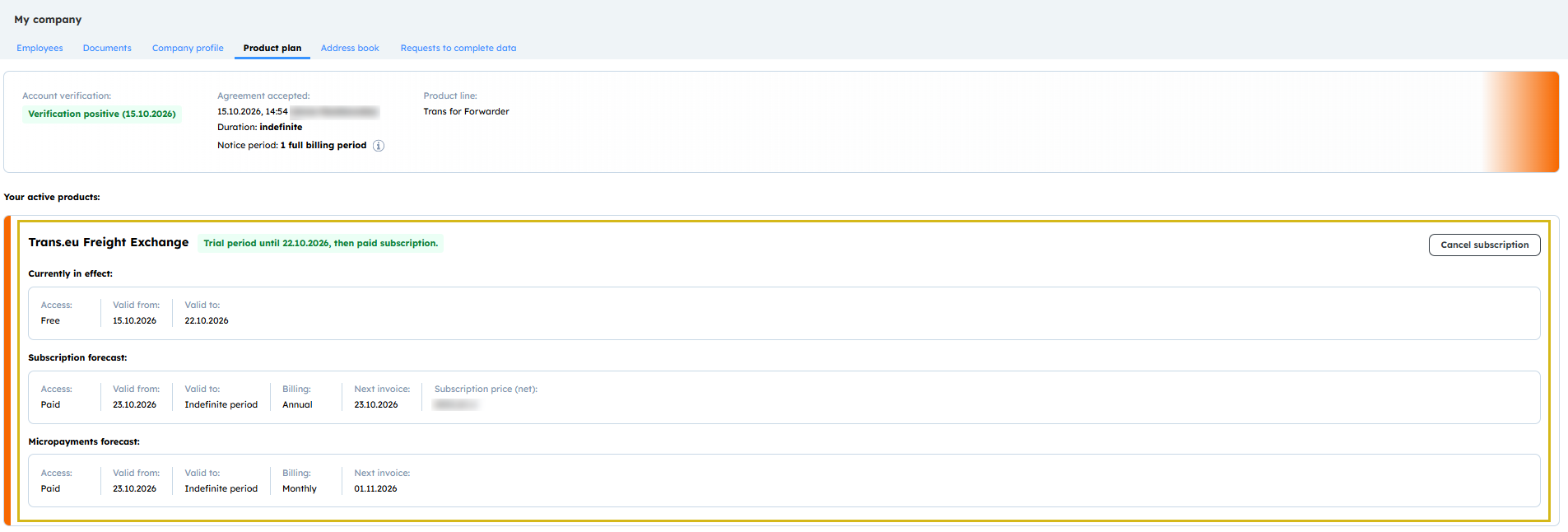
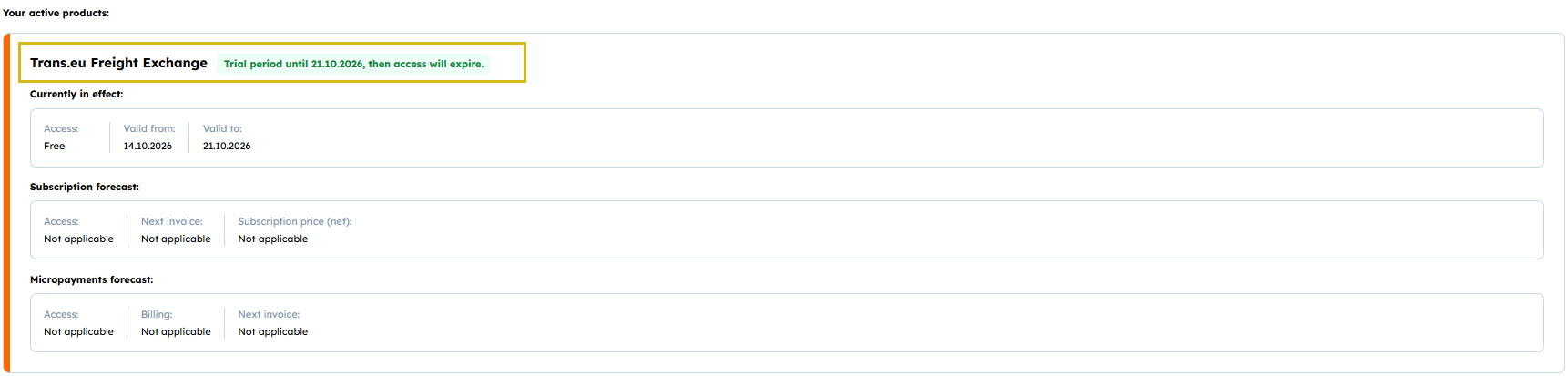
In the Your active products section, you will see the name of the product you ordered, e.g. Trans.eu Freight Exchange. Next to the name, we display the status, e.g. Trial period until (date), then paid subscription.
Below the product name, you will find three blocks of information:
• Currently in effect – until when you can use free access.
• Subscription forecast – when paid access starts, when we will issue your first invoice and its net amount.
• Micropayments forecast – when we will issue the invoice for micropayments, which we bill monthly.
Product plan with a paid subscription
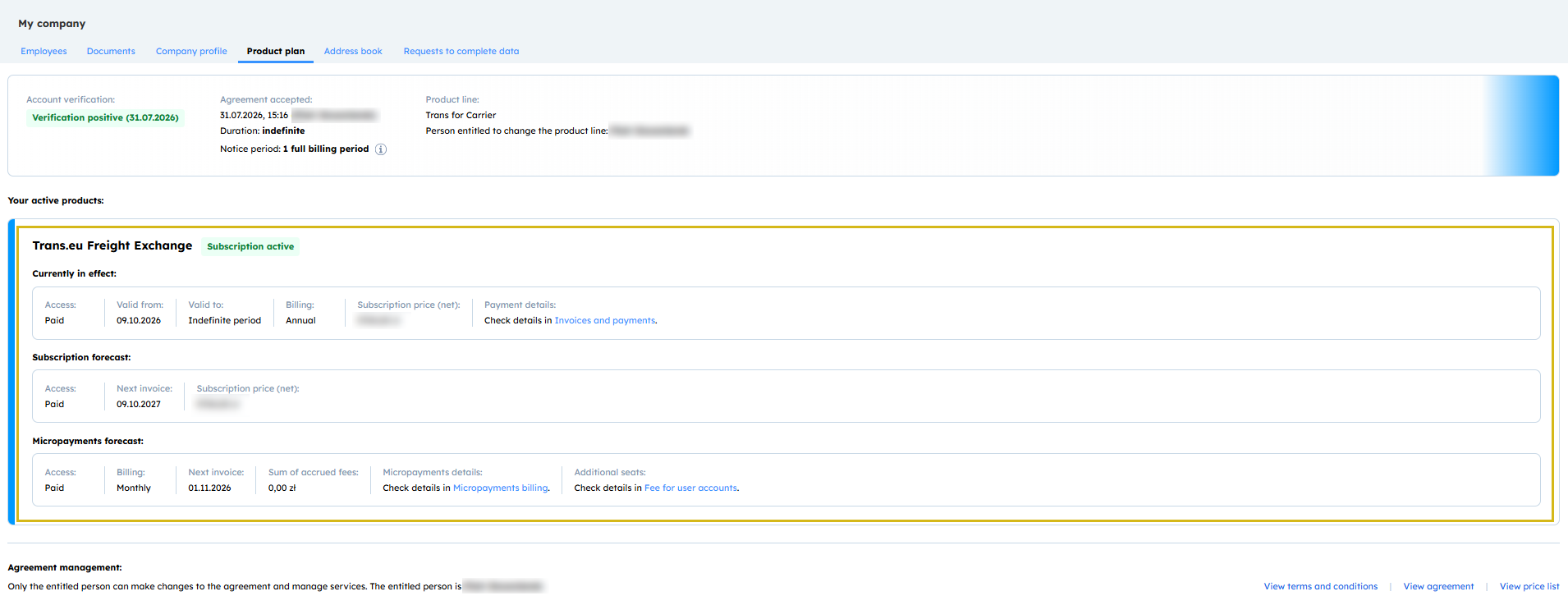
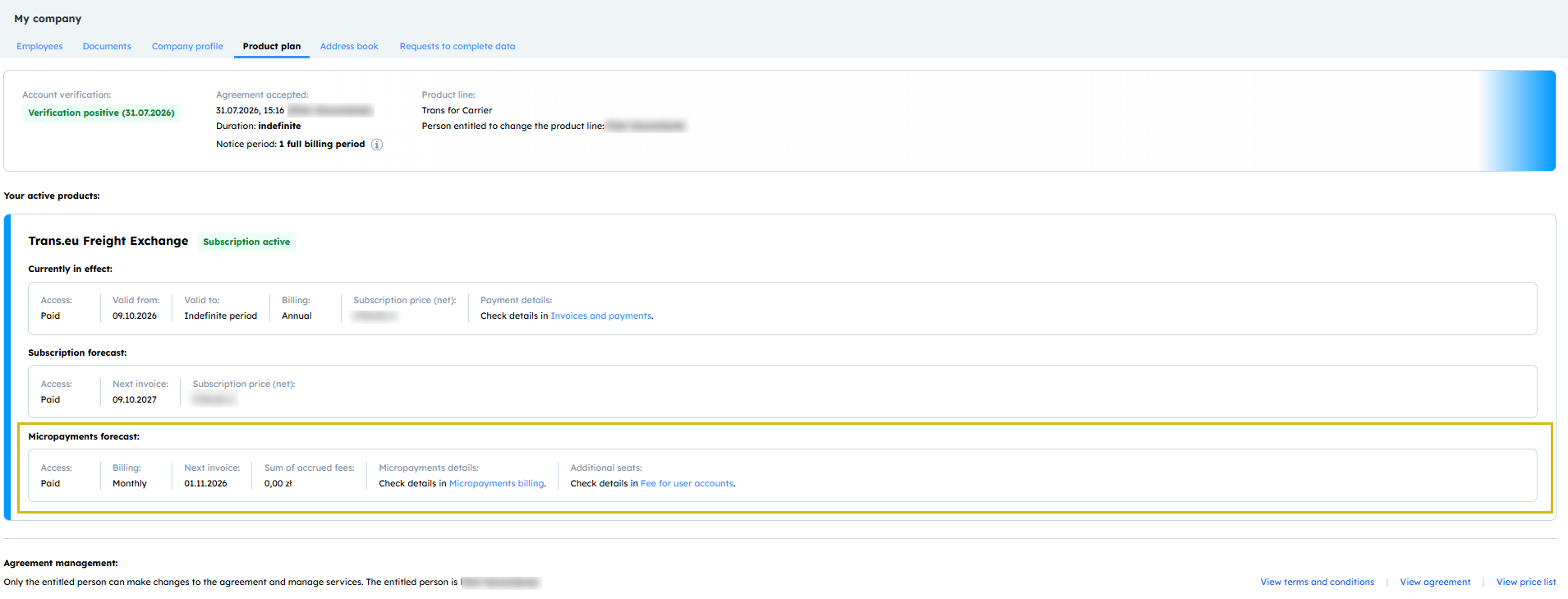
In the Your active products section, you will see the status Subscription active next to the product name.
Below the product name, you will find three blocks of information:
• Currently in effect – your current billing period and the net subscription price.
• Subscription forecast – when we will issue your next invoice and its net amount.
• Micropayments forecast – the total of charges in the current period and the date of the micropayments invoice.
Agreement and documents
After you place an order, you will find basic information about your company and agreement at the top of the tab:
• Account verification – your company's verification status.
• Agreement accepted – the date the agreement was accepted and the person who accepted it.
• Notice period – the time from giving notice until the agreement expires. Hover over the i icon to see details.
• Product line – your company's product line.
At the bottom of the tab, in the Agreement management section, you will find the links View terms and conditions, View agreement and View price list.
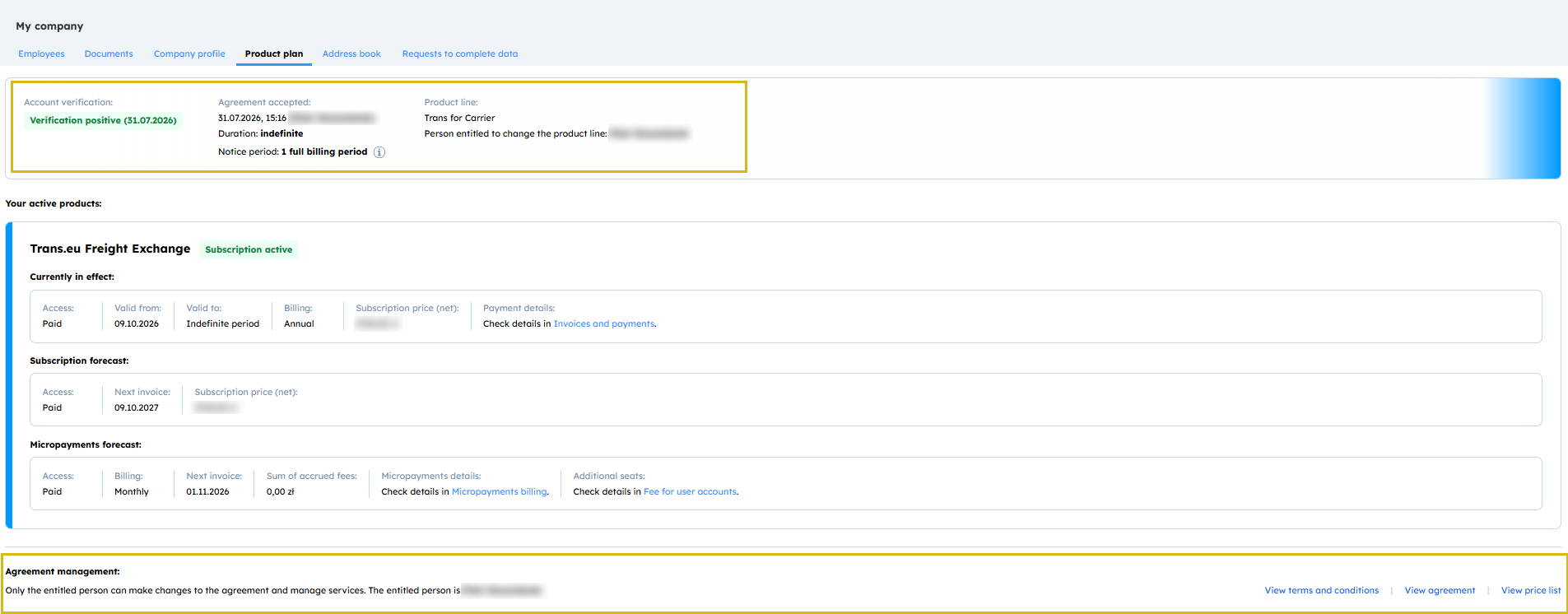
In the Duration field, you will see indefinite. Your subscription renews every month or every year, depending on your billing. Annual billing does not mean that your agreement ends after one year. If you terminate the agreement, you will see its end date instead.
How to check accrued micropayments
Micropayments are fees for individual services on the Platform that you use outside your subscription.
- To see the list, in the Micropayments forecast block, in the Micropayments details field, click the Micropayments billing link. You will see each micropayment from the current period with its charge date and unit price.
If you have annual billing, you will receive the subscription invoice once a year. We bill micropayments monthly, so you will receive separate monthly invoices for them.
How to cancel your subscription
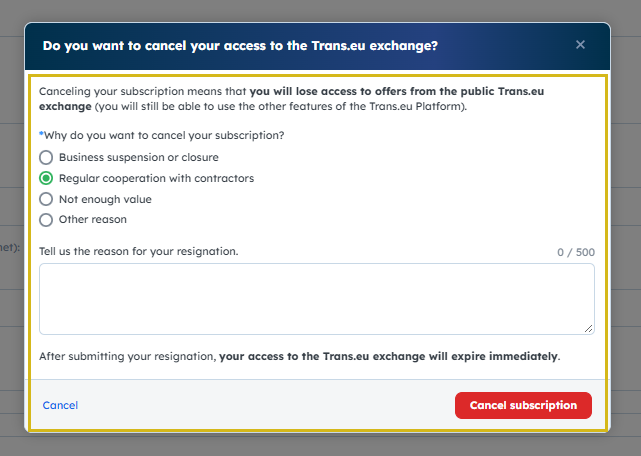
- In the Product plan tab, click Cancel subscription next to the product name.

- In the window that appears, select the reason for cancellation and click Cancel subscription. We will send you a cancellation confirmation by email.
- After cancellation, you will see the date your access ends in the Valid to field. Until that day, you can use the Platform as usual.
After cancellation, we may still issue an invoice for micropayments accrued in the last billing period.
FAQ
Why can't I see the cancellation button?
Only the entitled person can see the button, i.e. the user who represents your company in relations with Trans.eu. You can recognise them by the shield icon on the employee list (My company → Employees). If you are the entitled person and still can’t see the button, write to info@trans.eu or use the Help Trans.eu messenger.
The amount or date in the forecast differs from the issued invoice. Why?
The forecast shows the current state of your account. Changes to your account, e.g. changing your billing mode, may change the invoice date or amount. If no one has changed your account settings and the details still differ, write to info@trans.eu or use the Help Trans.eu messenger.
This translation was generated using AI and may contain minor inaccuracies.
